
Before you start
- You need Enquiry Management and Edit on Enquiries.
- The enquiry is New, In Progress or Quoted. A cancelled enquiry cannot be edited, and a converted one offers no Edit.
Steps
Change the enquiry's details
-
In the sidebar, select CRM › Enquiries.
-
On the enquiry's row, open the menu and select Edit Enquiry. Or open the enquiry and select Edit. "Edit Enquiry" opens.
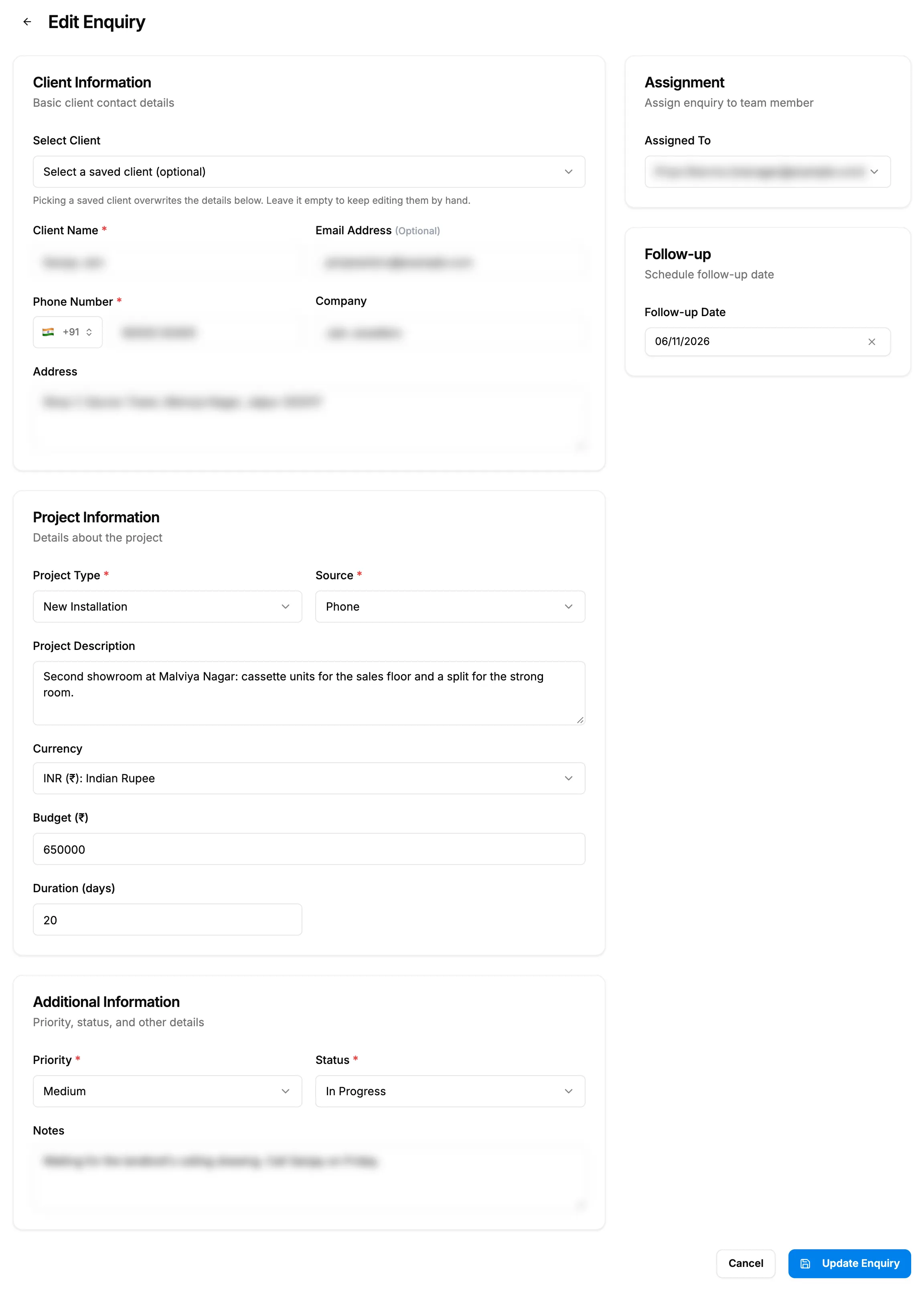
Step 2. Edit Enquiry with its five cards. -
Change the fields you need. Picking a client in Select Client overwrites the client details: "Picking a saved client overwrites the details below. Leave it empty to keep editing them by hand."
-
Select Update Enquiry.
Assign it or set a follow-up date
- Open Edit Enquiry as in steps 1 and 2 above.
- Under Assignment ("Assign enquiry to team member"), choose the person in Assigned To, or Unassigned.
- Under Follow-up ("Schedule follow-up date"), pick the Follow-up Date, or clear it.
- Select Update Enquiry.
Result
Change the enquiry's details: the message "Enquiry updated successfully" shows. The enquiry's page shows the new details, and Last Updated changes.
Assign it or set a follow-up date: the message "Enquiry updated successfully" shows. The enquiry's page shows the person under Assignment and the date under Timeline. On the list, the Assignee filter finds the enquiry under that person.
If something is different
- The page is called View Enquiry and has no Update Enquiry button: you have View but not Edit on Enquiries. See I can't edit an enquiry.
- "Cannot edit cancelled enquiries. You can only view them.": the enquiry is cancelled. See I can't edit an enquiry.
- "Validation error: [details]": correct the field named, then save again.
- "Failed to update enquiry": try again.
- The person you assigned is refused: they are no longer working. Choose someone else.
- The follow-up date can be in the past: on Edit Enquiry there is no earliest date. It is saved only when you change it.
- Budget is Restricted: a budget you change is not saved. See The enquiry budget shows Restricted or is not saved.
- To change only the status or priority: use the badges on the list. See Change an enquiry's status or priority.