
Before you start
- You need Project Management, Add on Projects and View on Enquiries.
- The enquiry exists and has not been converted to a project yet.
- Your company's plan is active and has room for another project.
Steps
-
In the sidebar, select Projects › List.
-
Select Add Project.
-
Under Client Information, open Select Enquiry (optional).
-
Type the enquiry number or the customer's name in "Search by enquiry no. or customer…", then select the enquiry. Each option reads "[enquiry number] - [client]", with the project type in lower case, for example "repair". The client fields fill in from the enquiry.
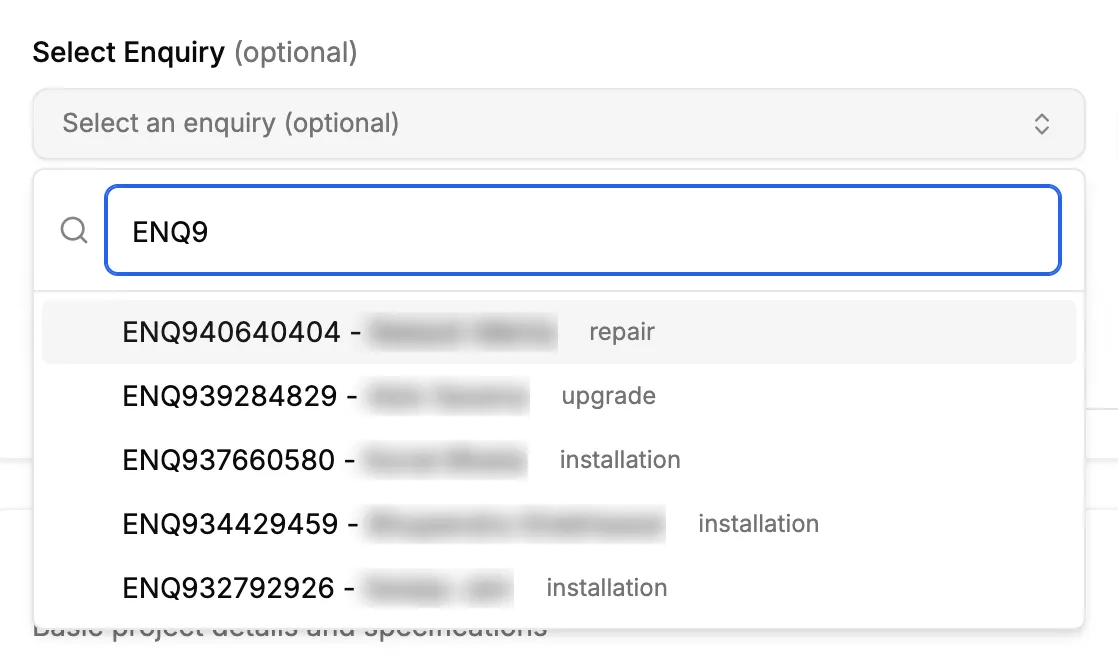
Step 4. Select Enquiry open with matching enquiries listed. -
Fill in the rest of the form as for any project. See Add a project.
-
Select Add Project.
From the enquiry: on CRM › Enquiries, Convert to Project in the enquiry's row menu, or on the enquiry's page, opens Add Project with the enquiry selected. Go on from step 5.
Result
The message "Project created successfully!" shows. The project opens on its Project Stages tab with Tender. The enquiry is marked converted and linked to the project, and the client is found or created from the enquiry.
While the project is Tender, material allocation, procurement and stock actions are locked. They open once a quotation for the project is accepted. See Accept or reject a quotation. The project then moves to Won.
If something is different
- No Select Enquiry field: you do not have View on Enquiries.
- "No matching enquiry: create one first.": no open enquiry matches. Create the enquiry first, or add the project without one. See Add an enquiry.
- "That enquiry can't be converted (not found or already converted).": the enquiry was converted by someone else, or deleted. Pick another enquiry, or select No enquiry (clear selection).
- A plan warning or upgrade box opens: see Add Project or Bulk Upload opens a plan warning.
- The tender did not convert: see Mark a tender as Lost.