
Before you start
- You need Project Management and View on Projects.
Steps
-
In the sidebar, select Projects › Kanban. "Projects Kanban" opens: "Every project placed in the workflow stage it is currently working on."
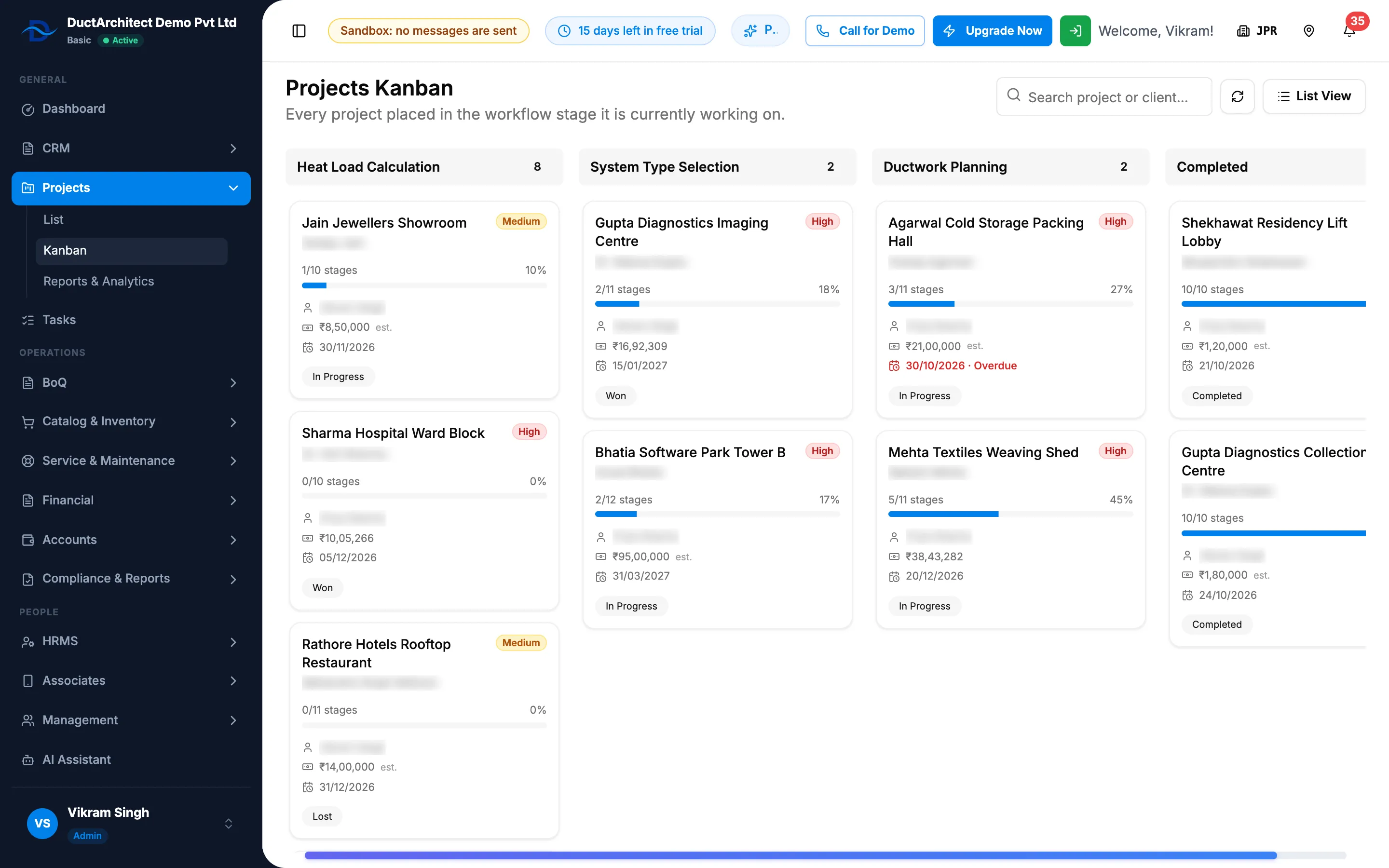
Step 1. The Projects Kanban board with stage columns and project cards. -
Read the columns from left to right. Each one is a stage, from Design Drawings and Building Model to Commissioning & Handover, then any custom stages, then Completed.
-
To find a project, type in "Search project or client...".
-
Select a card. The project opens on its Project Stages tab, at the stage the card sits in.
-
To load the latest state, select the Refresh icon. To go back to the table, select List View.
Result
Each card shows the project name, its priority badge, the client, "[done]/[total] stages" with a progress bar, the manager, the value, the end date and the status badge. The end date turns red with " · Overdue" when it is before today and the project is not in Completed.
A card sits in the column of its current stage. When every counted stage is done, it sits in Completed. Empty columns are hidden, except Building Model and Duct Layout when your company has them switched on.
If something is different
- You cannot drag a card: the board is read only. See I can't drag cards on the Kanban.
- The value shows "Restricted": see The value shows Restricted.
- A "No Stages" column: some projects have no stages.
- An "Equipment Procurement" column: a retired stage. It shows only when a project's current stage is that one, and that stage cannot be opened on the project page.
- "No projects found" / "Create your first project to see it on the kanban board.": select Create Project to open Add Project. See Add a project.
- "No matching projects": nothing matches your search. Select Clear search.
- "Failed to load kanban board": select the Refresh icon.
- Projects shows in your sidebar but the board opens Access Denied: see "Project not found" or Access Denied when I open a project.