
Before you start
- You need Project Management and Edit on Projects.
- You created the project, are its project manager, or are an Owner, Admin or HR.
- The project is not completed or cancelled.
Steps
-
In the sidebar, select Projects › List.
-
On the project's row, open the dropdown in the Priority column and choose the new priority.
-
The "Change Project Priority" box asks "Change priority of [name] from [old] to [new]?".
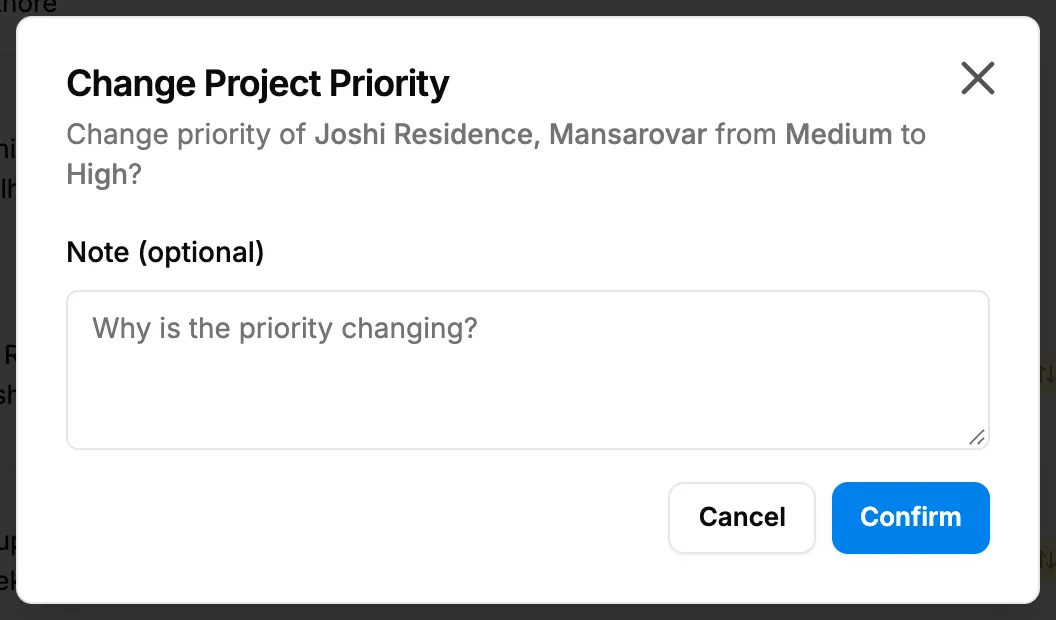
Step 3. The Change Project Priority box with the optional note. -
Optional: in Note (optional), write why the priority is changing. Up to 1000 characters.
-
Select Confirm.
Result
The message "Priority updated" shows. The row's priority badge shows the new priority: Low in green, Medium in yellow, High in orange, Urgent in red.
If something is different
- No dropdown, only a badge: the project is completed or cancelled.
- "You do not have permission to do this.": you do not have Edit on Projects.
- Refused after you select Confirm: you have Edit on Projects but did not create or manage the project. Ask the project manager, an Owner or an Admin.
- "Project already has this priority": pick a different priority.
- Urgent is not in Add Project or Edit Project: those forms offer only Low, Medium and High. Urgent is offered only here, on the list.