
Before you start
- You need Edit on Projects. With View only, Edit Project opens read only.
- To change the status, you also created the project, are its project manager, or are an Owner or Admin.
Steps
Edit project details
-
In the sidebar, select Projects › List.
-
On the project's row, open the row menu and select Edit Project. On the project page, select Edit Project in the header.
-
The "Edit Project" box opens: "Update project details and information". Change the fields you need.
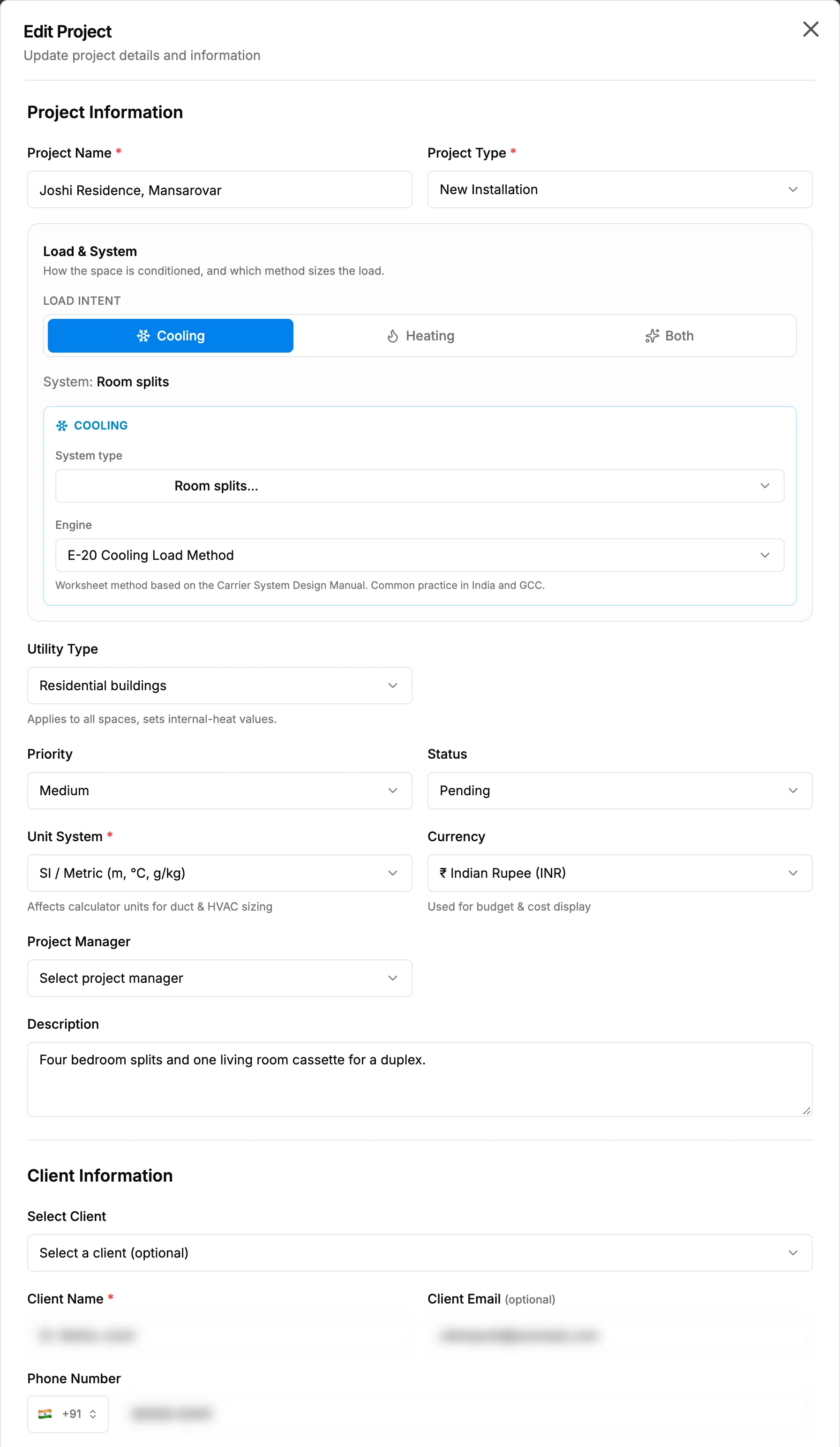
Step 3. The Edit Project box with Project Information and Client Information. -
Select Update.
Move the status forward
- Open Edit Project as in steps 1 and 2 above.
- Under Project Information, open Status (beside Priority) and choose the next status: In Progress or Completed.
- Select Update.
Result
Edit project details: the message "Project updated successfully" shows. The list and the project page show the new details.
Move the status forward: the message "Project updated successfully" shows, and the status badge shows the new status. Most status moves also happen on their own as stages progress. See How a project moves from Tender or Pending to Completed.
If something is different
- No Edit Project in the menu: you do not have Edit on Projects.
- The form is read only and there is no Update button: you have View but not Edit on Projects.
- "Limited Editing Mode": start date, end date and location are locked once the project is in progress, completed or started. See Dates, location or client are locked on Edit Project.
- Client name, email and phone are locked: a client record is linked in Select Client. Change the details on the client record. See Edit a client or mark it inactive.
- Pending is greyed out, or "Status cannot be changed backward (project progress: [number]%)": see I can't change a project's status back.
- The Status box shows no Tender or Lost option: a tender or lost project opens with a status the box cannot show. A tender moves with its quotation; Lost is final.
- A warning opens when you change the system type: some stages would be affected. Select Continue to keep the change, or Cancel.
- Contract Value cannot be typed: it comes from the awarded quotation, or the project is Tender or Lost. The box says which.
- "Validation Error - [message]": correct the field the message names, then select Update again.
- Unit System: "Affects calculator units for duct & HVAC sizing". Change it before design work starts.