
Before you start
- You need Project Management and Edit on Projects.
- The project is Tender.
Steps
-
Open the project.
-
In the header, select Mark as Lost. The box "Mark project as Lost?" says "This tender did not convert. The project will be badged Lost."
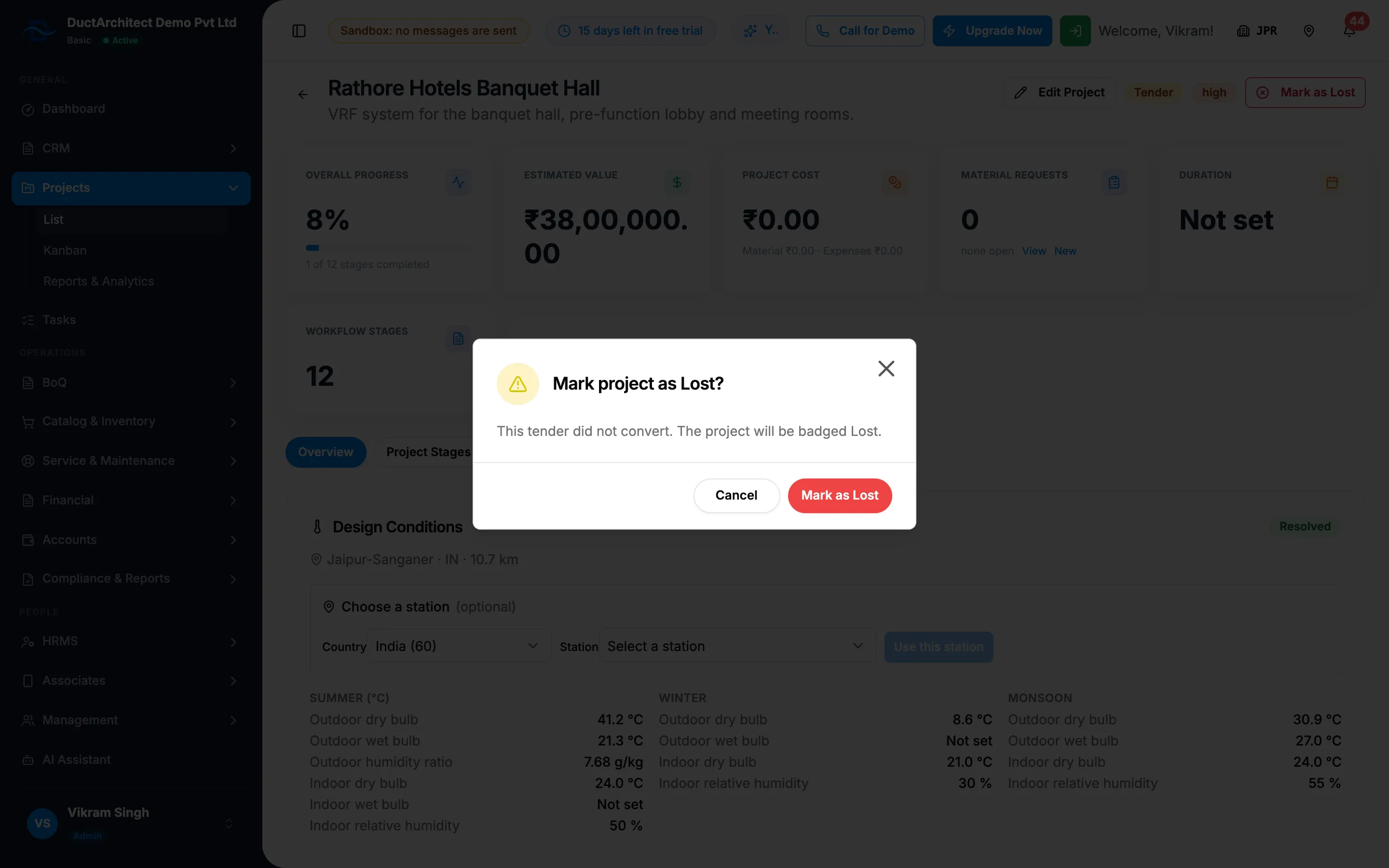
Step 2. The Mark project as Lost box. -
Select Mark as Lost.
Result
The message "Project marked as Lost. It is retained for win-rate records." shows. The project shows Lost. On the Material Allocation stage: "This project is marked Lost, material, procurement, and stock actions are disabled." In Edit Project, the contract value reads "This project was marked lost, so there is no contract value."
If something is different
- No Mark as Lost button: the project is not Tender, or you do not have Edit on Projects.
- "Project is already marked Lost.": someone marked it already.
- "Only a tender-stage project can be marked Lost.": the project has moved on from Tender. To remove a project that will not go ahead, see Delete a project.