
Before you start
- You need User Management and Edit on Customers.
- An enquiry keeps its own copy of the client's details. Editing the client does not change enquiries already made.
Steps
-
In the sidebar, select CRM › Clients. When the CRM module is off, select Management › Clients.
-
Find the client. See Find clients on the list: search, filter and export.
-
On the client's row, open the ... menu and select Edit Client. The "Edit Client" box opens.
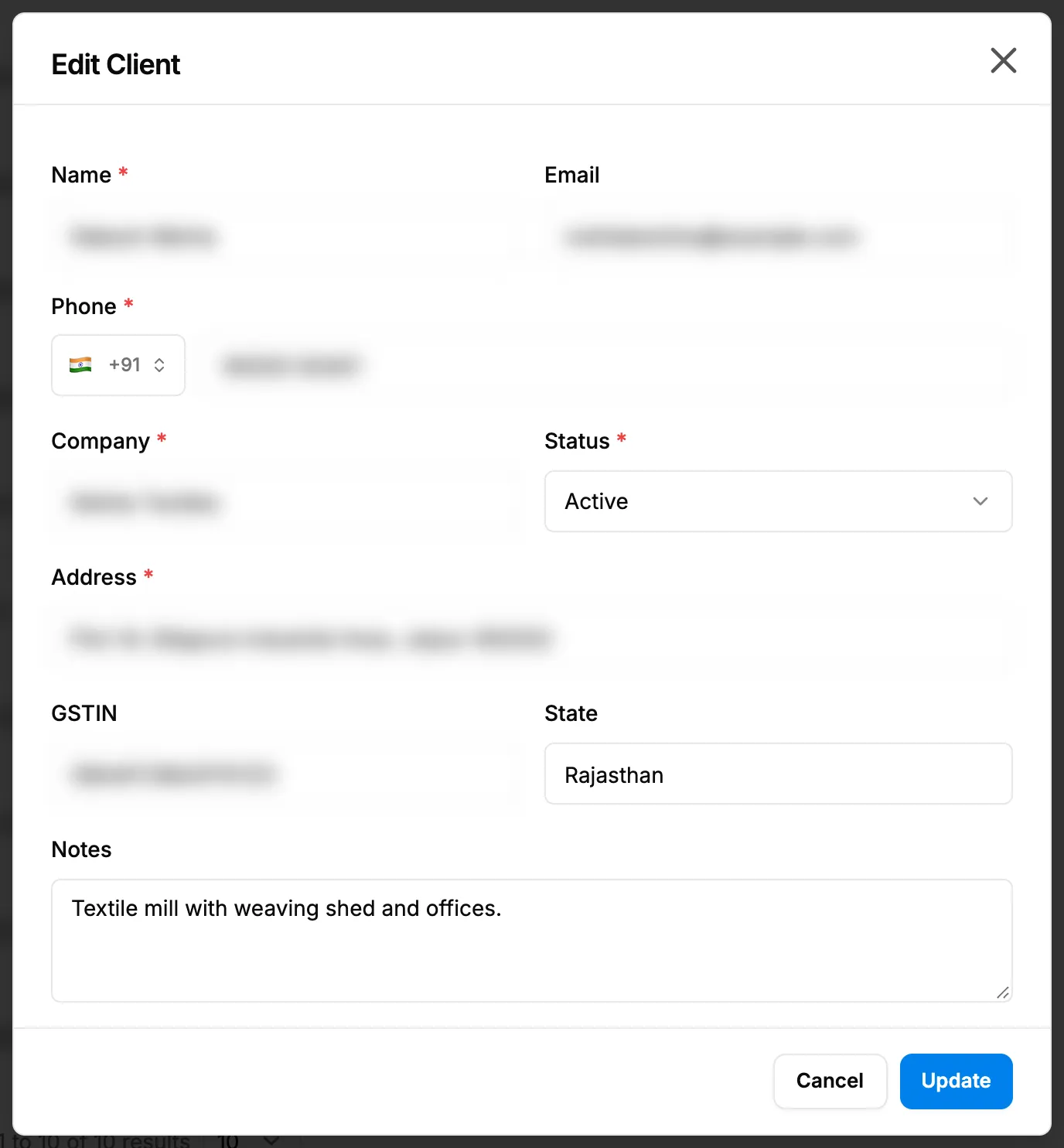
Step 3. The Edit Client box with the client's details and Status. -
Change the details you need. The fields are the same as on Add Client. See Add a client.
-
To make the client inactive, change Status to Inactive. To make it active again, change Status to Active.
-
Select Update.
Result
The message "Client updated" shows, and the row shows the new details and status. An Inactive client stays on the list (the Inactive filter finds it) but is no longer offered in Select Client on enquiries. Making a client inactive changes no other record. See How a client moves between Active and Inactive.
If something is different
- The menu says View Client, and the box says "View only. You cannot edit customers.": you have View but not Edit on Customers. Ask your administrator.
- Email, Phone and Address are greyed out with "Contact details are hidden for you; they stay as they are when you save.": you cannot see customer contact details. The other fields can still be changed. See I can't see prices or customer details.
- "Client with this email already exists": another client has that email. Use a different one, or edit that client instead.
- No Activate or Deactivate button: there is none. Use Status in this box.
- The client is locked on Edit Project: a project's client name, email and phone come from the client record linked in Select Client. Change them here.