
Before you start
- You need Add on Projects.
- The quotation is Accepted, not linked to a project, and its enquiry is not converted yet.
Steps
-
Open the quotation's page, or its row menu on CRM › Quotations.
-
Select Convert to Project. The box says "Create a project from accepted quotation [number]. Client, currency and total carry over from the quotation."
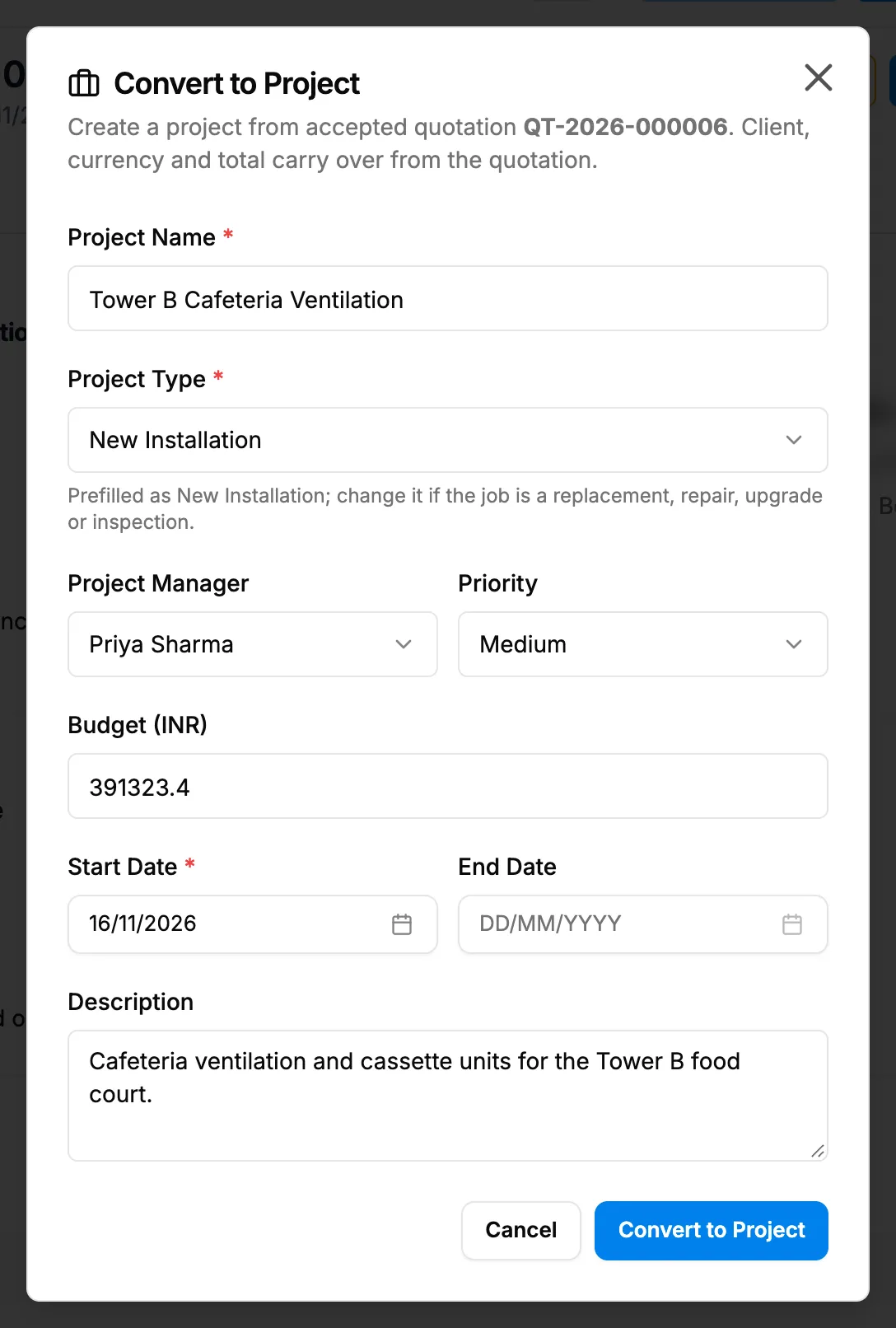
Step 2. The Convert to Project box with Project Name, Project Type and Start Date. Field Required What to enter Project Name Yes Starts as [client] - Project. Project Type Yes New Installation (default), System Replacement, Repair & Maintenance, System Upgrade or Inspection & Assessment. "Prefilled as New Installation; change it if the job is a replacement, repair, upgrade or inspection." Project Manager No An active manager, or Unassigned. Priority No Low, Medium (default), High or Urgent. Budget No Defaults to the accepted quotation total. Start Date Yes A date. End Date No Not before the start date. Description No Free text. -
Select Convert to Project.
Result
The message "Quotation converted to project" shows. The project is Won, with its stages, and this quotation is its awarded quotation. The enquiry is marked converted. View Project opens it. See What a converted enquiry shows.
If something is different
- "Project name is required" or "Start date is required": fill them in.
- "End date cannot be before the start date": pick a later end date.
- "Project manager not found or inactive": choose another manager.
- The convert is refused: you do not have Add on Projects. The button shows anyway.
- The enquiry already became a project: link the quotation to it instead. See Link a quotation to its project.
- An upgrade box opens: the plan's project limit is reached. See Add Project or Bulk Upload opens a plan warning.