
Before you start
- You need Edit on Quotations and Can see selling prices.
- The quotation is Draft or Sent.
- The quotation has a client email address.
Steps
Send the quotation
-
Open the quotation's page, or its row menu on CRM › Quotations.
-
Select Send to client. On a quotation sent before, the button reads Resend to client. The box "Send to client" asks "Send quotation [number] to [email]?" and shows the attachment "Quotation-[number].pdf".
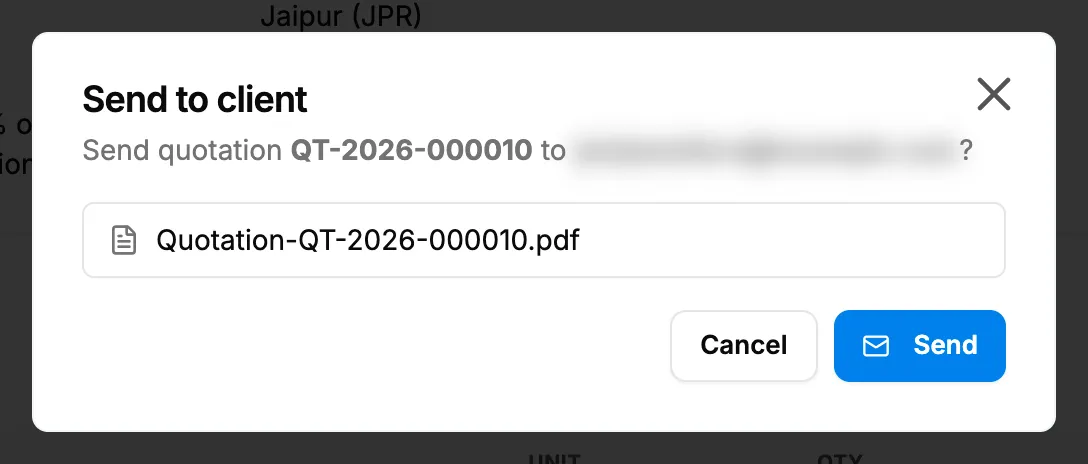
Step 2. The Send to client box with the client's email and the PDF attachment. -
Select Send. It reads "Sending..." while it sends.
Check the email history
- On the quotation's page, find Email history: Date and time, To, CC, By, Status and Error.
Result
Send the quotation: the message "Quotation sent to [email]" shows. You are in copy, and replies come to you: the sender is CC'd and is the Reply-To. A draft becomes Sent and its seller details are frozen. The page shows "Last sent to [email] on [date and time] by [name]", and the button now reads Resend to client.
Check the email history: every attempt is listed, with Sent or Failed. Before the first send it reads "This quotation has not been emailed to the client yet."
Sending does not change the project's status. When the client decides, see Accept or reject a quotation.
If something is different
- Send to client is greyed out: see Send to client is greyed out.
- "This quotation was already sent 5 times in the last hour.": see "This quotation was already sent 5 times in the last hour.".
- "The quotation could not be sent.", or a Failed row: see The email to the client failed.
- "The quotation PDF could not be built. Please try again.": see The quotation PDF could not be built, or Download PDF failed.
- The client's email and phone are missing from the PDF: your role does not have Can see customer contact details.