
Before you start
- You need Operation Management.
Steps
-
Open Settings, select the card BoQ Settings, then Catalog ↔ Library mapping. "Catalog ↔ Standards Library Mapping" opens: "Map your inventory to the standards library once. Future BoQs push to procurement in one click. Unmapped is fine; nothing here is required."
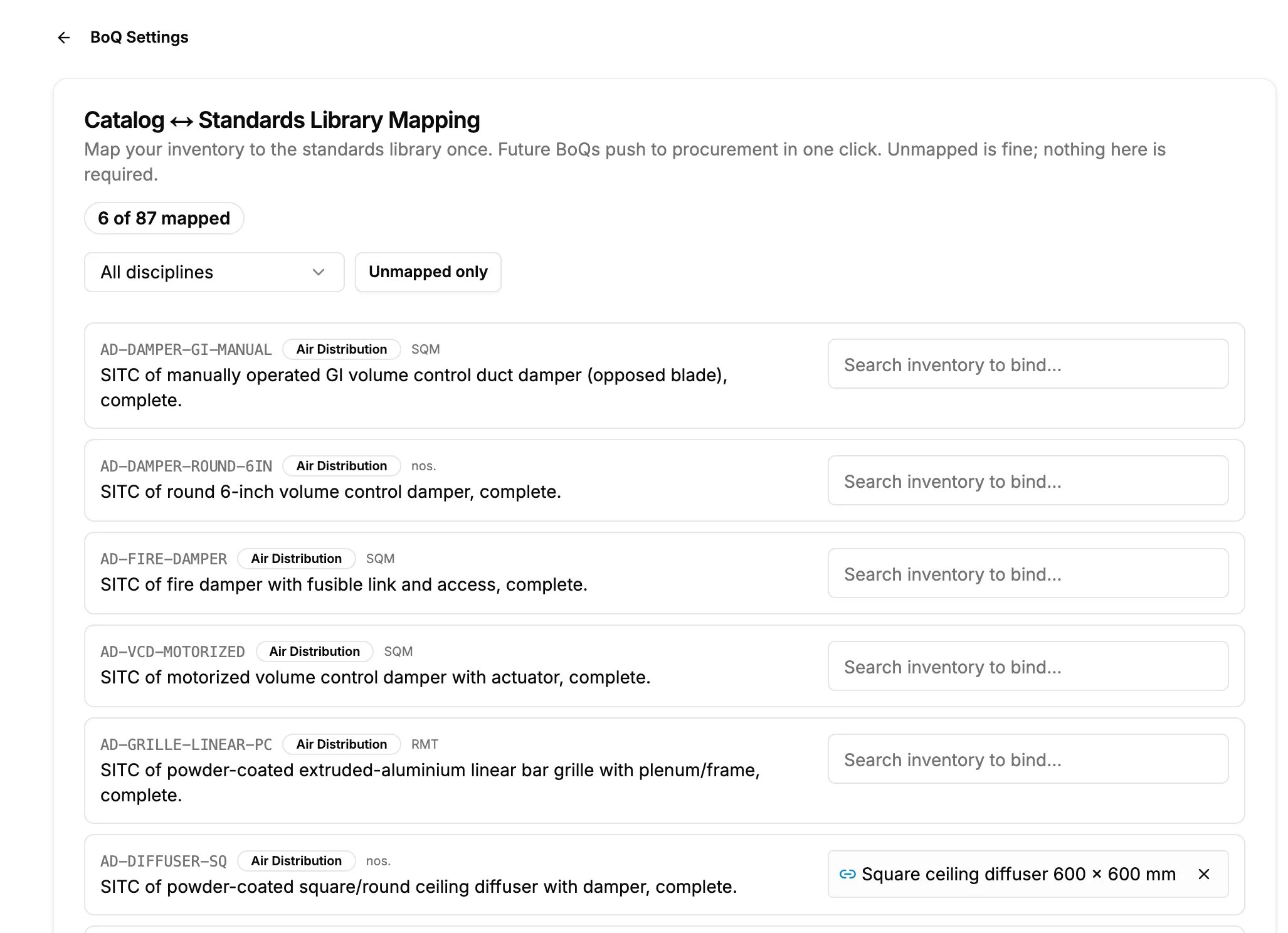
Step 1. Catalog ↔ Standards Library Mapping with the mapped count and the filters. -
Narrow the list with the discipline filter, or tick Unmapped only.
-
On a library item, search "Search inventory to bind…" and pick your item.
-
If the units differ, enter the conversion factor.
-
Select Save mapping.
Result
The message "Mapping saved" shows. The item shows your inventory item with "× [factor]", and the badge counts "[number] of [number] mapped".
If something is different
- To remove a mapping: select the clear button, "Clear mapping". The message "Mapping cleared" shows.
- "Item deleted": the inventory item was deleted. Map another.
- "No library items left unmapped": every item is mapped.
- From a BoQ: the panel's mapping nudge links here too.