
Before you start
- You need Edit on Quotations and Can see selling prices.
- The quotation is Draft.
Steps
-
In CRM › Quotations, open the row menu of the quotation and select Edit Draft. On the quotation's page, select Edit.
-
"Edit Quotation" opens: "Update the quotation details below." Change what you need. The enquiry shows as Linked Enquiry and cannot be changed.
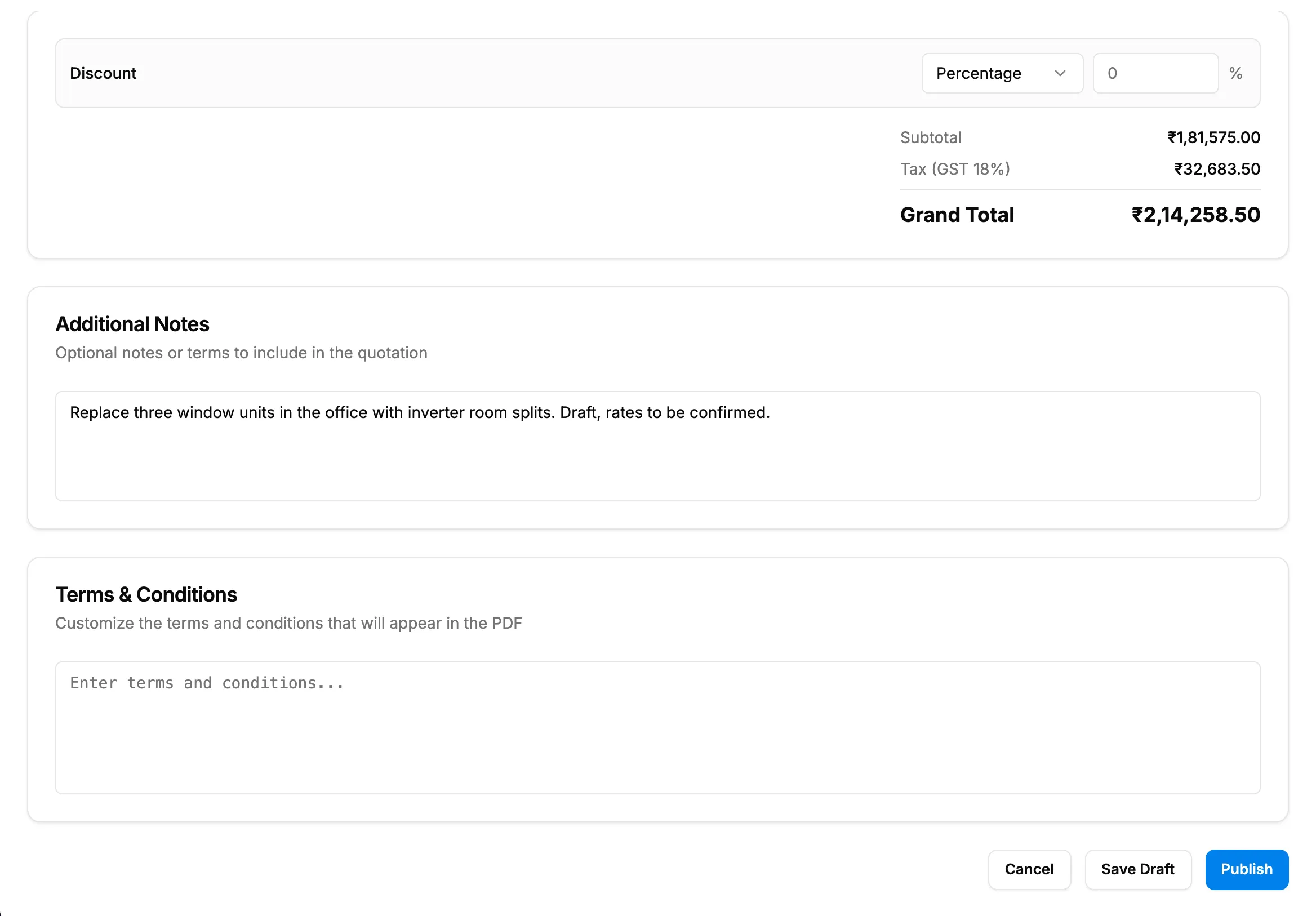
Step 2. Edit Quotation with Save Draft and Publish. -
At the bottom of the form, select Save Draft to keep it as a draft, or Publish to make it ready to send.
-
If "No Budget Set" opens, read the totals and select Yes, Publish, or No, Go Back.
Result
Save Draft: the message "Quotation saved as draft" shows. The quotation stays Draft.
Publish: the message "Quotation published successfully" shows. The quotation is Sent and listed under Published. Its seller details are frozen.
Next: Send a quotation to a client.
If something is different
- "Only draft quotations can be edited": the quotation is no longer a draft. See I can't edit or delete an accepted quotation.
- "View Quotation", read only: you have View but not Edit on Quotations.
- "No enquiry linked to this quotation": the quotation came from a BoQ or a supersede with no enquiry. See A quotation from a BoQ will not save.
- "Quotation is already published": someone published it already.
- "Items total ([amount]) exceeds budget ([amount]). Please reduce items or increase budget.": lower the lines or raise Budget (Editable).
- Branches: the branch can change only while the quotation is a draft.