
Before you start
- You need Operation Management and Edit on BoQs.
- The BoQ is Draft.
- To see or change costs and markup, you need Can see purchase costs.
Steps
-
Open the BoQ: the project's BoQ stage, or the standalone BoQ's page.
-
On the toolbar, set Default markup % and the Rate structure: Single rate or Supply + Labour.
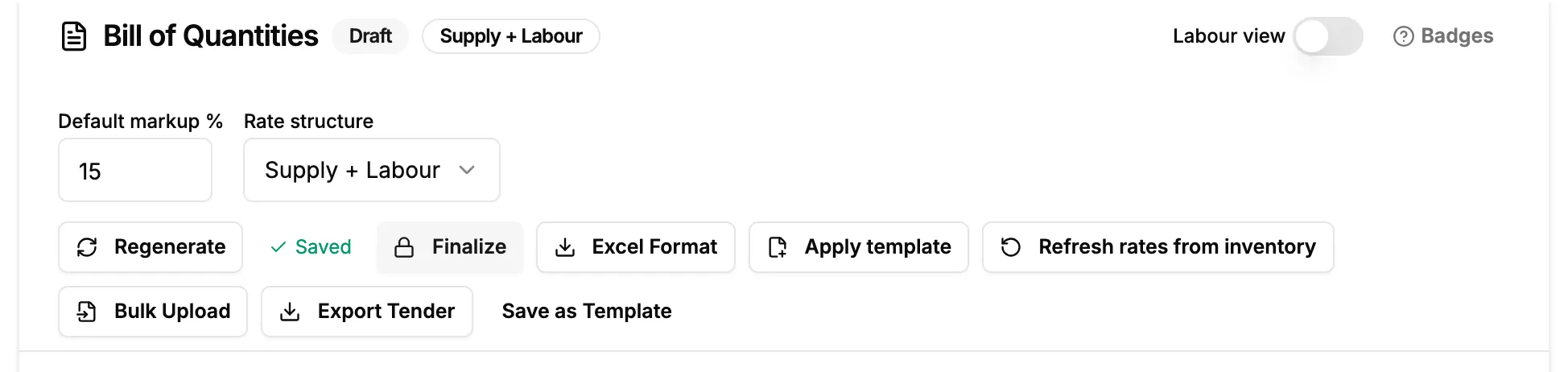
Step 2. The draft BoQ toolbar with Default markup %, Rate structure and the save status. -
Change the lines and their rates in the sections.
-
To see the labour side, turn on Labour view.
-
Check the save status on the toolbar, next to Regenerate. It should read "Saved". If it shows Save or Retry save, select it.
Result
The save status reads "Saved · [time]". The BoQ stays Draft.
Next: Finalize or reopen a BoQ.
If something is different
- "BoQ is finalized. Reopen it to edit.": see "BoQ is finalized. Reopen it to edit.".
- "Retry save": the last save failed. Select it again.
- No markup or cost: you do not have Can see purchase costs. See Restrict what a role can see and export.
- The line badges: select Badges for their meaning. Under "Quantity source": "Derived: Calculated from project data via a standard rule (see “basis”)", "Estimated: Rule-of-thumb approximation, review & adjust", "(none): Entered manually, or awaiting your entry" and "overridden: You edited this line; Regenerate will not change it". Under "Inventory link (for procurement push only)": "mapped: Linked to a catalog item, pushable" and "Not mapped: Not linked, still valid for tender & quotation". And "RO = Rate Only: rate without committed quantity".
- "[number] lines aren't mapped to inventory. Map your catalog to the standards library once for one-click procurement push.": this only matters for the procurement push. See Map your catalog to the standards library.
- A long BoQ: the toolbar shrinks to a sticky bar with the same items in ⋯ and Jump to… to move between sections.