
Before you start
- You need Accounts Management. Your company's plan is active.
- These details are kept for your records only. The GSTIN printed on invoices comes from your company and branch settings. See Set up GST and your tax registration.
Steps
-
In the sidebar, select Compliance & Reports › Statutory Details. The page reads "Manage company GST, PAN, and CIN details".
-
In the PAN/CIN Details card ("Company identification numbers"), fill in the numbers.
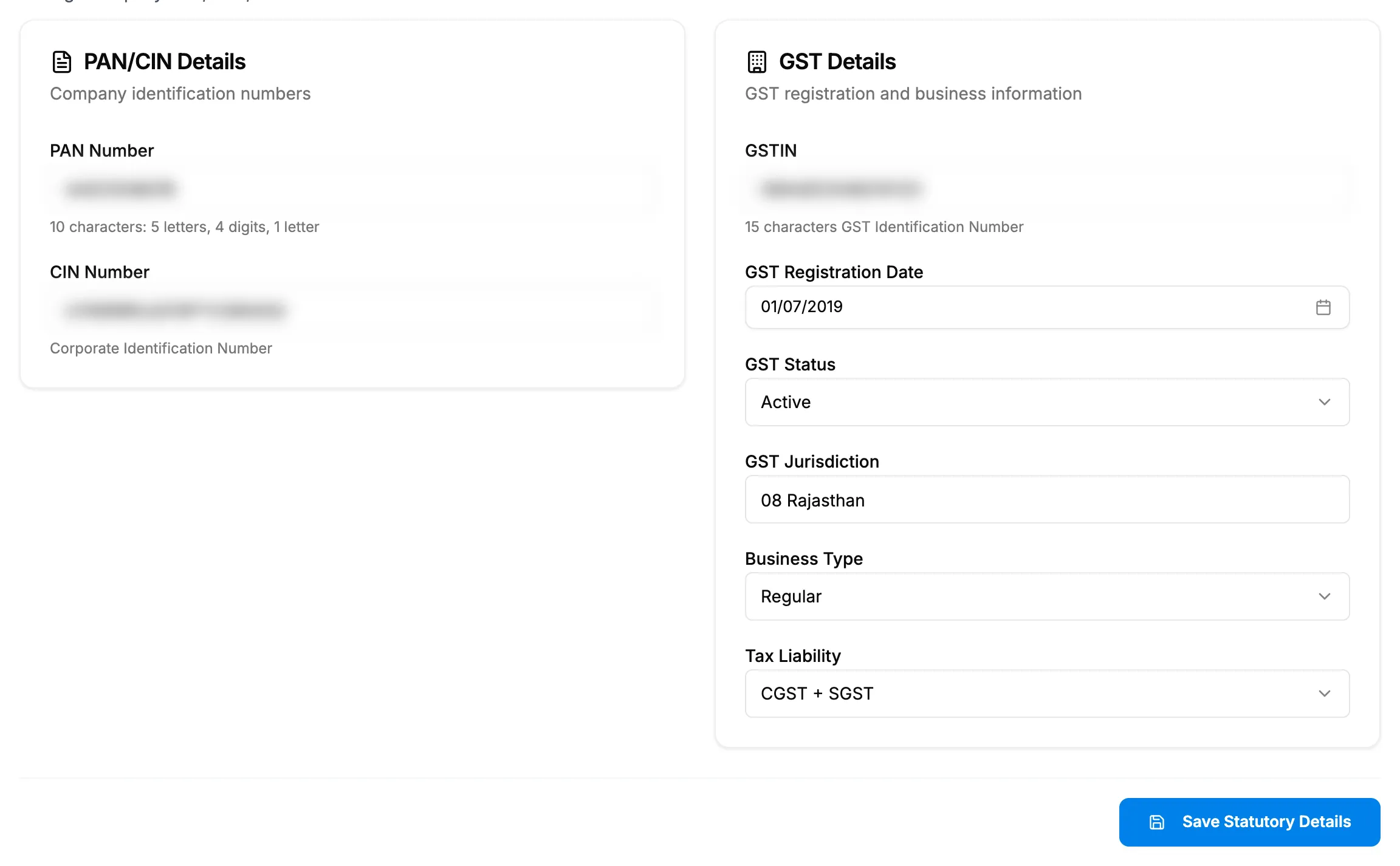
Step 2. Statutory Details with the PAN/CIN Details and GST Details cards. -
In the GST Details card ("GST registration and business information"), fill in the GST details.
Field Required What to enter PAN Number No 10 characters: 5 letters, 4 digits, 1 letter, for example ABCDE1234F. CIN Number No The Corporate Identification Number, 21 characters. GSTIN No 15 characters, for example 27ABCDE1234F1Z5. GST Registration Date No A date. GST Status No None, Active, Suspended or Cancelled. GST Jurisdiction No The State or Union Territory code. Business Type No None, Regular, Composition or Unregistered. Tax Liability No None, CGST + SGST, or IGST. -
Select Save Statutory Details.
Result
The message "Statutory details saved successfully" shows. The details stay on the page for your company. Nothing else in DuctArchitect reads them: not invoices, not tax and not posting.
If something is different
- "Please fix validation errors": a number is in the wrong format. The field shows "Invalid PAN format (e.g., ABCDE1234F)", "Invalid CIN format" or "Invalid GSTIN format (15 characters, e.g., 27ABCDE1234F1Z5)".
- The GSTIN on invoices is different: invoices use the GSTIN of the invoice's branch or your company settings. See The invoice shows the wrong branch, address or GSTIN.
- No TDS, PF or ESI fields: Accounts has none. See Statutory details and payroll voucher types are not used on invoices or payroll.
- A plan box opens on Save: see Every page sends me to Plans & Pricing.