
Before you start
- You need Accounts Management and Edit on Accounts vouchers. To delete a draft, Delete on Accounts vouchers. Your company's plan is active and within its Accounts limit.
- The bank account exists and is active. See Add, edit or delete a bank account.
- You have the bank statement with its date, opening balance and closing balance.
Steps
Create the reconciliation
-
In the sidebar, select Accounts › Reconciliation. The page is titled "Bank Reconciliation".
-
Select New Reconciliation. "New Reconciliation" opens: "Create a new bank reconciliation".
-
Fill in the statement:
Field Required What to enter Bank Account Yes The bank account, shown as name - number. Lists active bank accounts. Statement Date Yes The date of the bank statement. Opening Balance Yes The opening balance on the statement. Closing Balance Yes The closing balance on the statement. Cannot be negative. -
Select Create Reconciliation. The card shows Draft, Opening, Closing and Difference.
Tick the lines and complete
-
On the reconciliation's card, select View. "Reconciliation Details" opens with Opening Balance, Closing Balance, Book Balance and Difference.
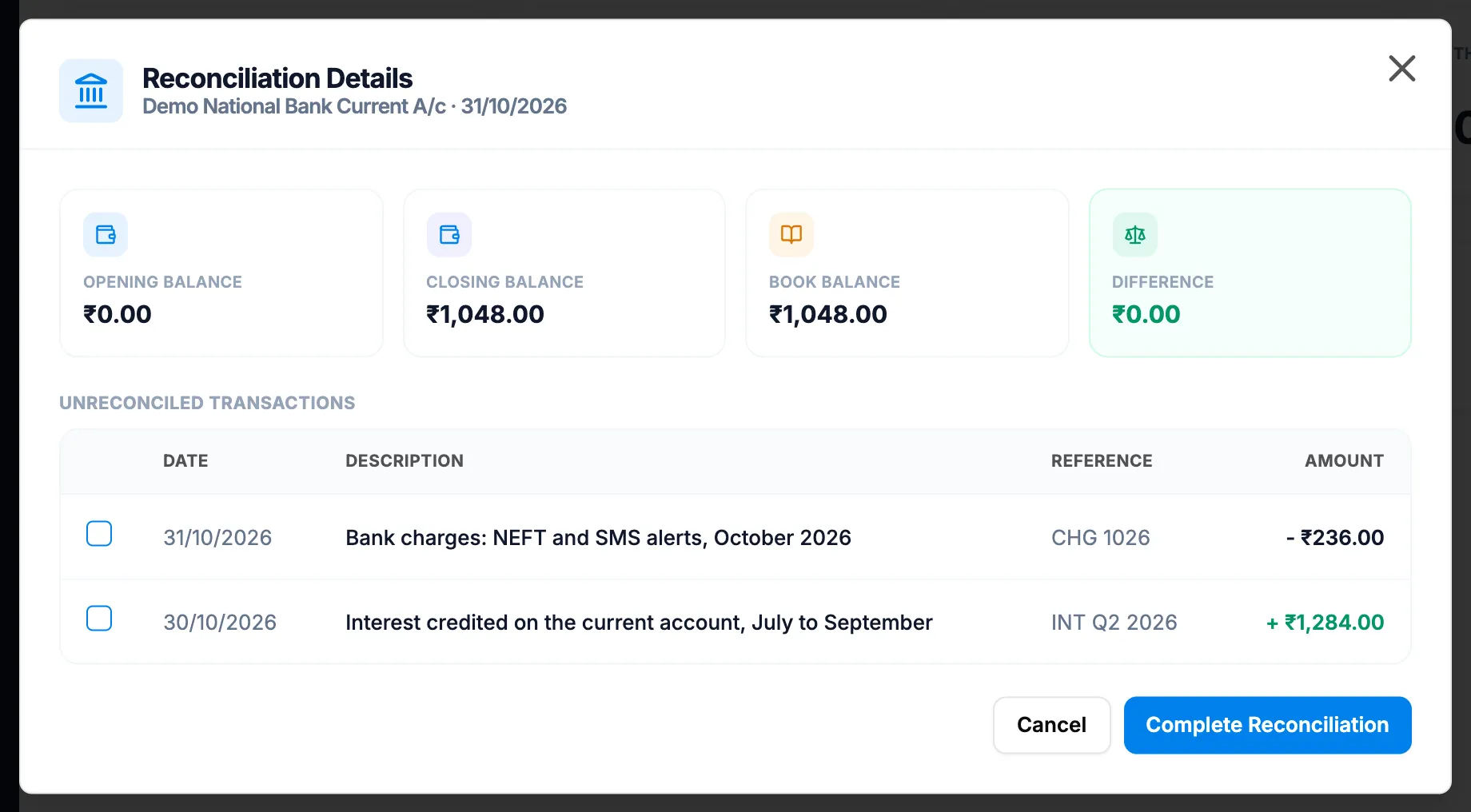
Step 1. Reconciliation Details with the balances and the Unreconciled Transactions table. -
In Unreconciled Transactions, tick each line that is on the bank statement. Amounts show with + for money in and - for money out.
-
Check the Difference. It is green at zero and red otherwise.
-
Select Complete Reconciliation. To leave without completing, select Cancel.
Delete a draft reconciliation
- On the draft's card, select delete (bin). "Delete Reconciliation" asks: "Are you sure you want to delete this reconciliation? It will be removed from the list; the record is kept."
- Select Delete. To keep it, select Cancel.
Result
- Create: the message "Reconciliation created successfully" shows. The Pending card counts drafts.
- Complete: "Reconciliation completed successfully". The card reads Completed, the ticked lines become Reconciled, and the Reconciled card counts it. A reconciled line's voucher can no longer be cancelled.
- Delete: "Reconciliation deleted successfully".
If something is different
- Reconciliation is missing or refused: you need View on Accounts vouchers. See Accounts or Compliance & Reports is missing, or an Accounts page is refused.
- No line picker in New Reconciliation: lines are ticked in View, after the reconciliation is created.
- Complete Reconciliation works with a difference or with nothing ticked: nothing stops it. Check the difference before you complete. See A reconciliation shows a difference, or cannot be undone.
- The book balance looks wrong: it is the head's opening balance plus approved vouchers up to the statement date. See A bank balance or opening balance looks wrong.
- "Closing balance cannot be negative" or "Missing required fields": enter the closing balance as 0 or above, and fill in every field.
- A completed reconciliation: it has no delete and cannot be reopened.
- A plan box opens: see Every page sends me to Plans & Pricing.