
Before you start
- You need Accounts Management. To add, your company's plan is active and within its Accounts limit.
- Payroll is run on HRMS › Payroll. It does not use these types and posts nothing to Accounts. See Run payroll for a month.
Steps
Add a voucher type
-
In the sidebar, select Compliance & Reports › Payroll Voucher Types. The page reads "Manage payroll voucher type configurations".
-
Select Add Voucher Type. "Create Payroll Voucher Type" opens: "Add a new payroll voucher type".
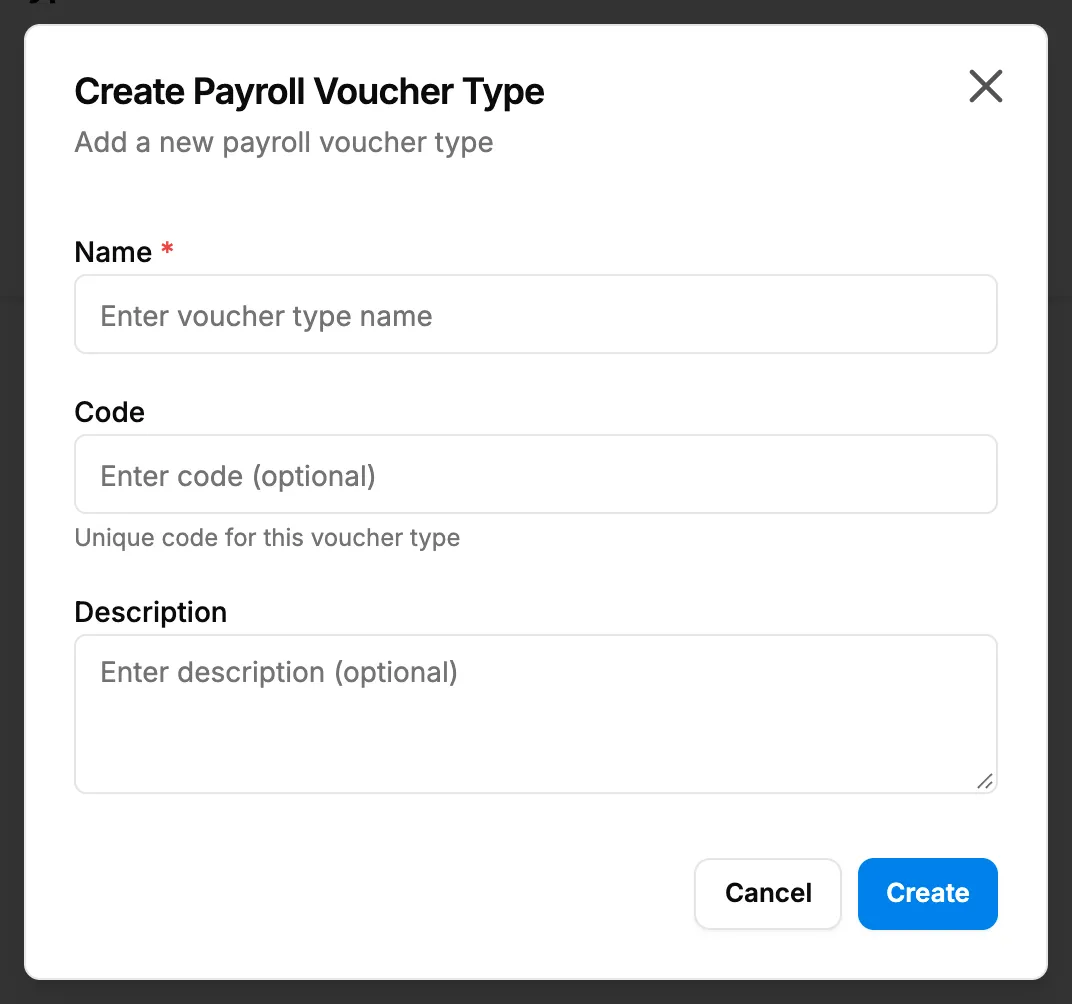
Step 2. The Create Payroll Voucher Type box with Name, Code and Description. -
Fill in the type:
Field Required What to enter Name Yes The voucher type name. Code No Unique code for this voucher type. Description No A description. -
Select Create. To stop, select Cancel.
Find, edit or delete a voucher type
- To find one, type in Search voucher types....
- To edit, select edit on the row. "Edit Payroll Voucher Type" opens: "Update payroll voucher type details". Change the fields and select Update.
- To delete, select delete on the row. "Delete Payroll Voucher Type" asks: "Are you sure you want to delete "[name]"? It will be removed from all lists; the record is kept." Select Delete.
Result
- Add: the message "Payroll voucher type created successfully" shows. The type is listed with Name, Code, Description and "Active".
- Edit: "Payroll voucher type updated successfully".
- Delete: "Payroll voucher type deleted successfully", and the type leaves the list. With no types left, the list reads "No payroll voucher types found".
If something is different
- "Voucher type code already exists": choose another code.
- A type shows Inactive: no screen makes a type active or inactive.
- Payroll does not post vouchers of this type: nothing else reads these types. See Statutory details and payroll voucher types are not used on invoices or payroll.
- A plan box opens on Add Voucher Type: see Every page sends me to Plans & Pricing.