
Before you start
- You need Accounts Management. Your company's plan is active. To export, also Can export lists.
- Only approved vouchers count. Approve the drafts you want in the figures first. See Approve a voucher.
Steps
-
In the sidebar, select Compliance & Reports › Financial Statements. The page reads "Generate and view financial reports."
-
Choose the tab: Trial Balance, Profit & Loss or Balance Sheet.
-
Choose the dates:
- For the trial balance and profit and loss, From: and To:. They start on 1 January of your company's year and today. For a financial year from April, set From: to 1 April.
- For the balance sheet, As On Date:. It starts on today.
-
Select Generate.
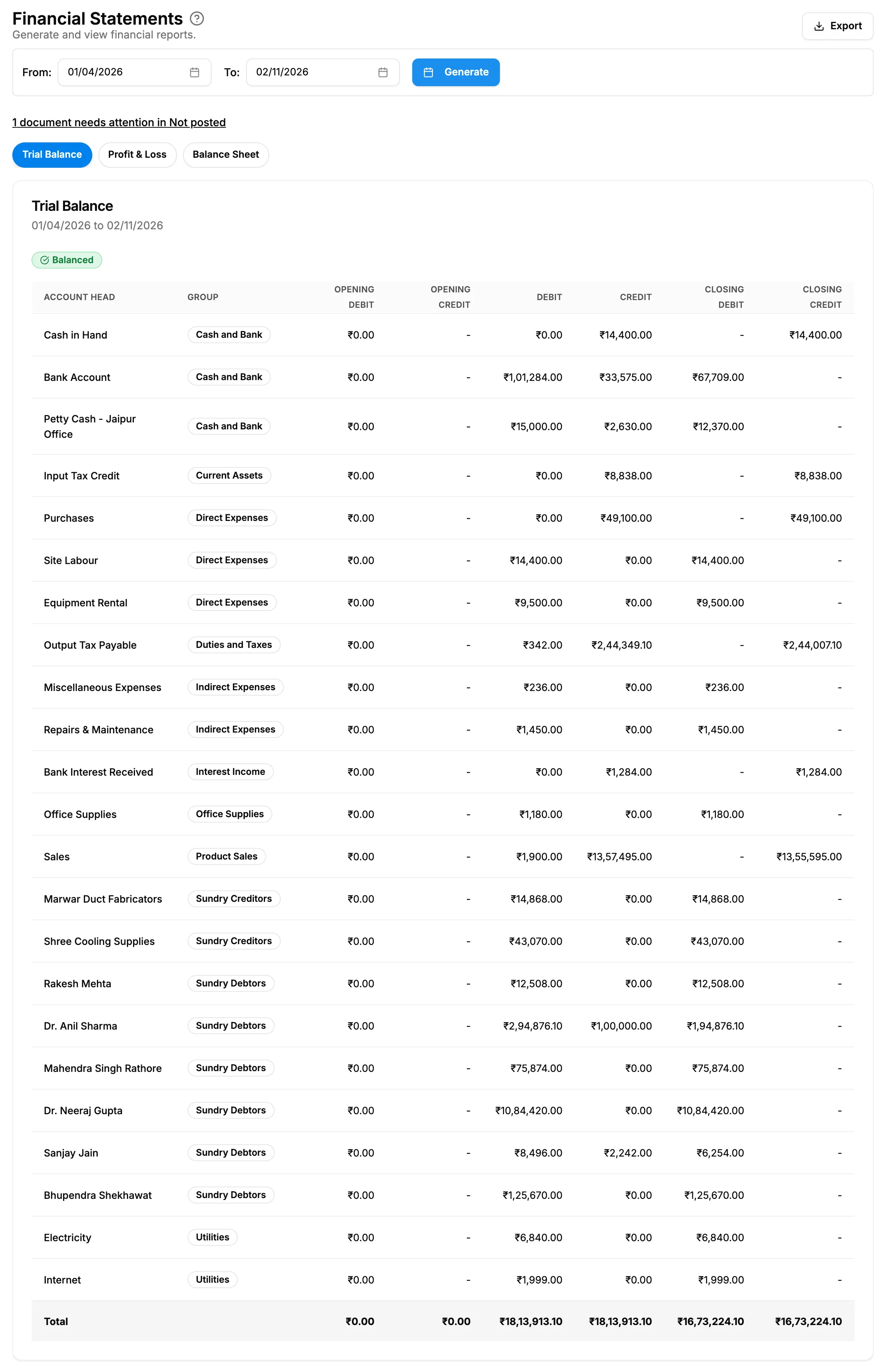
Step 4. The Trial Balance tab with the date bar, the Balanced badge and the totals row. -
Read the statement:
Tab What it shows Trial Balance Each head with Group, Opening Debit, Opening Credit, Debit, Credit, Closing Debit and Closing Credit, and a Total row. The badge reads Balanced or Not Balanced. The opening columns are the head's opening balance plus every approved entry before the From date. Profit & Loss Income by group and head with Total Income, Expenses with Total Expenses, then Net Profit or Net Loss. Balance Sheet "As on [date]", Assets with Total Assets, and Liabilities & Capital with Profit/Loss and Total Liabilities & Capital. The badge reads Balanced or Not Balanced. -
To save it, select Export at the top right of the page, above the date bar. A CSV file of the open tab downloads, for example
trial-balance-[from]-to-[to].csv.
Result
The statement is built from every approved voucher that is not deleted, in the dates you chose. The export shows "Report exported successfully". Each tab keeps its result until you generate it again.
If something is different
- "Click Generate to view trial balance" (or the profit and loss or balance sheet): select Generate on that tab.
- Not Balanced, or figures look short: see A statement or report leaves out vouchers, or says Not Balanced.
- "Automatic posting is off" or "[number] document(s) need(s) attention in Not posted" above the tabs: some documents are not in the figures. See An invoice, payment, expense or purchase is not in the accounts.
- "Some entries are not included": entries on deleted accounts are left out. See A statement or report leaves out vouchers, or says Not Balanced.
- No Export, or "No data available to export. Please generate the report first.": see An accounts report export is empty, or Export is missing.
- A plan box opens on Generate: see Every page sends me to Plans & Pricing.