
Before you start
- You need Accounts Management and Delete on Accounts vouchers.
- The voucher is a manual Approved voucher. A draft is deleted instead. See Edit or delete a draft voucher.
- None of its bank lines is reconciled, and its date is not in a locked financial year.
Steps
-
In the sidebar, select Accounts › Vouchers.
-
Open the voucher's Actions menu and select Cancel. "Cancel Voucher" asks: "Are you sure you want to cancel voucher "[number]"? This action cannot be undone."
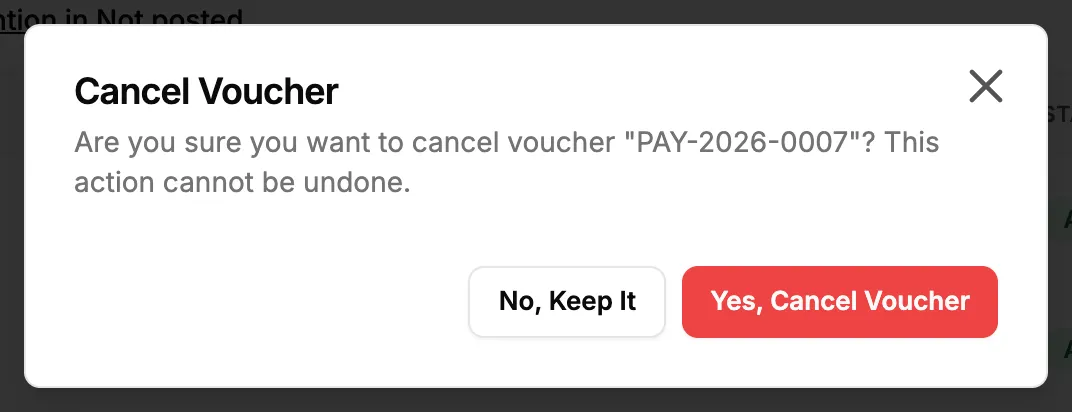
Step 2. The Cancel Voucher box with No, Keep It and Yes, Cancel Voucher. -
Select Yes, Cancel Voucher. To stop, select No, Keep It.
Result
The message "Voucher cancelled successfully" shows. The row reads Cancelled. The voucher leaves every balance and report except the Day Book, and its bank transactions are removed from Banking. To record the right figures, enter a new voucher. See Create a voucher.
If something is different
- No Cancel in the menu: you need Delete on Accounts vouchers, and the voucher must be an approved manual voucher. See Edit, Approve or Cancel is missing on a voucher.
- "This voucher has a reconciled bank entry. Undo the reconciliation before cancelling it.": one of its bank lines was ticked in a reconciliation. See A reconciliation shows a difference, or cannot be undone.
- "Can only cancel approved vouchers. Current status: [status]": the voucher is a draft or already cancelled.
- An Auto voucher: it is cancelled with its document. Cancel or change the invoice, payment, expense or purchase instead.
- "[year] is locked. Vouchers dated in a locked financial year cannot be changed.": see A voucher or document is in a locked financial year.