
Before you start
- You need Accounts Management. To edit, Edit on Accounts vouchers; to delete, Delete on Accounts vouchers.
- The voucher is a manual Draft. An approved voucher is cancelled instead. See Cancel an approved voucher.
- Its date is not in a locked financial year.
Steps
Edit a draft voucher
-
In the sidebar, select Accounts › Vouchers.
-
Open the draft's Actions menu and select Edit. "Edit Voucher" opens: "Update voucher details and entries".
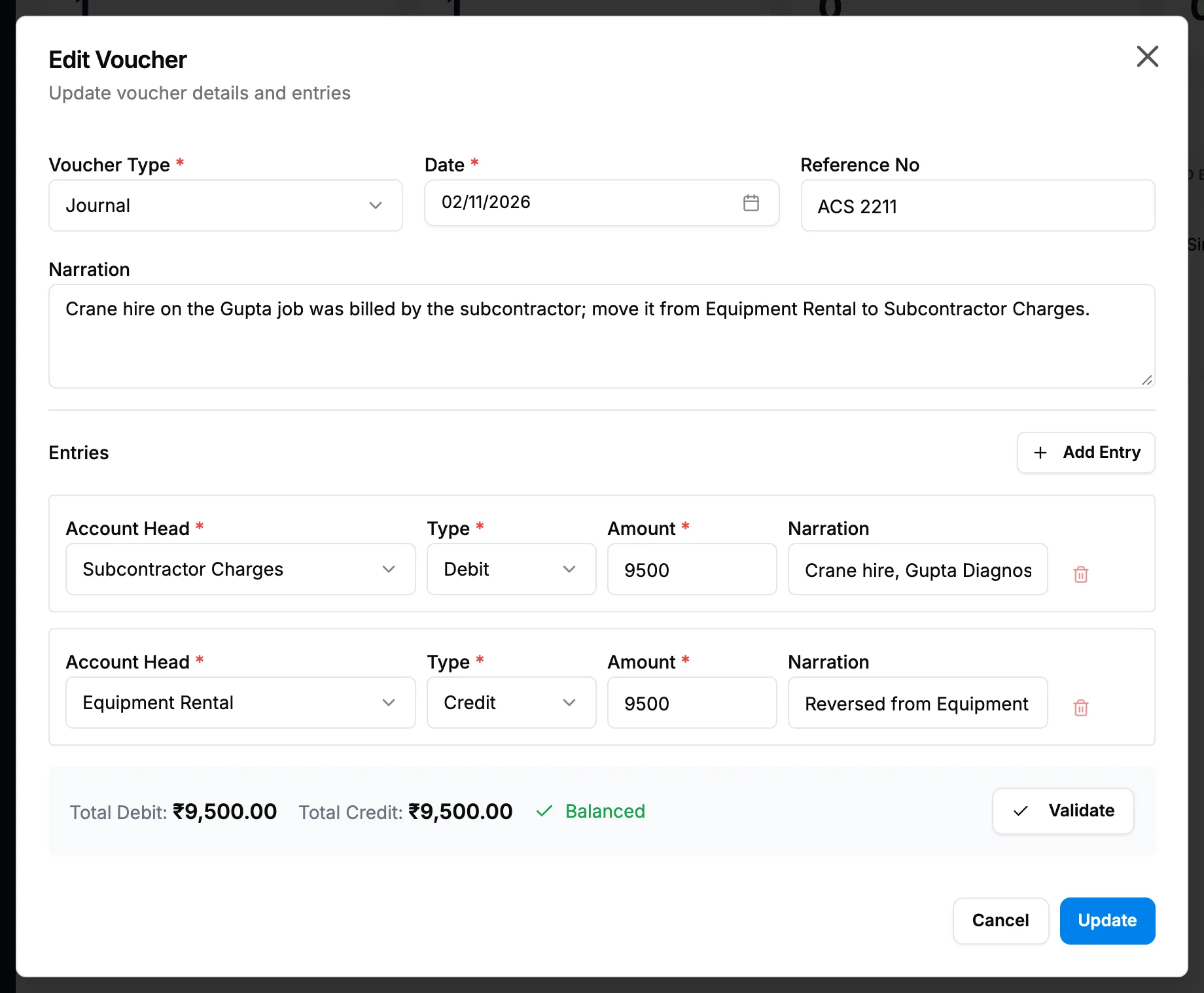
Step 2. The Edit Voucher box of a draft voucher. -
Change the Date, Reference No, Narration or the entries. Use Add Entry for another line.
-
Check that the footer reads "Balanced".
-
Select Update.
Do not change Voucher Type here: the change is not saved. To change the type, delete the draft and create it again. See Create a voucher.
Delete a draft voucher
- Open the draft's Actions menu and select Delete. "Delete Voucher" asks: "Are you sure you want to delete voucher "[number]"? It will be removed from the books and all reports; the record is kept."
- Select Delete. To keep it, select Cancel.
Result
- Edit: the message "Voucher updated successfully" shows. The voucher stays a draft. Next: Approve a voucher.
- Delete: "Voucher deleted successfully". The voucher leaves the list and every report. Its number is not used again.
If something is different
- No Edit or Delete in the menu: you need the action on Accounts vouchers, and the voucher must be a manual draft. See Edit, Approve or Cancel is missing on a voucher.
- The box opens with no Update button: you have View but not Edit on Accounts vouchers. The box is read only.
- "Can only update draft vouchers" or "Can only delete draft vouchers": the voucher was approved in the meantime. Cancel it instead.
- "This voucher is created automatically. Change the source document to update it.": it is an Auto voucher. Change its invoice, payment, expense or purchase.
- "[year] is locked. Vouchers dated in a locked financial year cannot be changed.": see A voucher or document is in a locked financial year.
- Another message on Update: see A voucher cannot be saved, approved or cancelled.