
Before you start
- You need Accounts Management and Approve on Accounts vouchers.
- The voucher is a Draft, entered by hand or moved in from Tally, and its debit equals its credit.
- Its date is not in a locked financial year.
Steps
-
In the sidebar, select Accounts › Vouchers.
-
To find the drafts, choose Draft in the status filter and Manual in the source filter.
-
Check the voucher: open the row's Actions menu and select View. Read the entries, then close the box.
-
Open the row's Actions menu and select Approve.
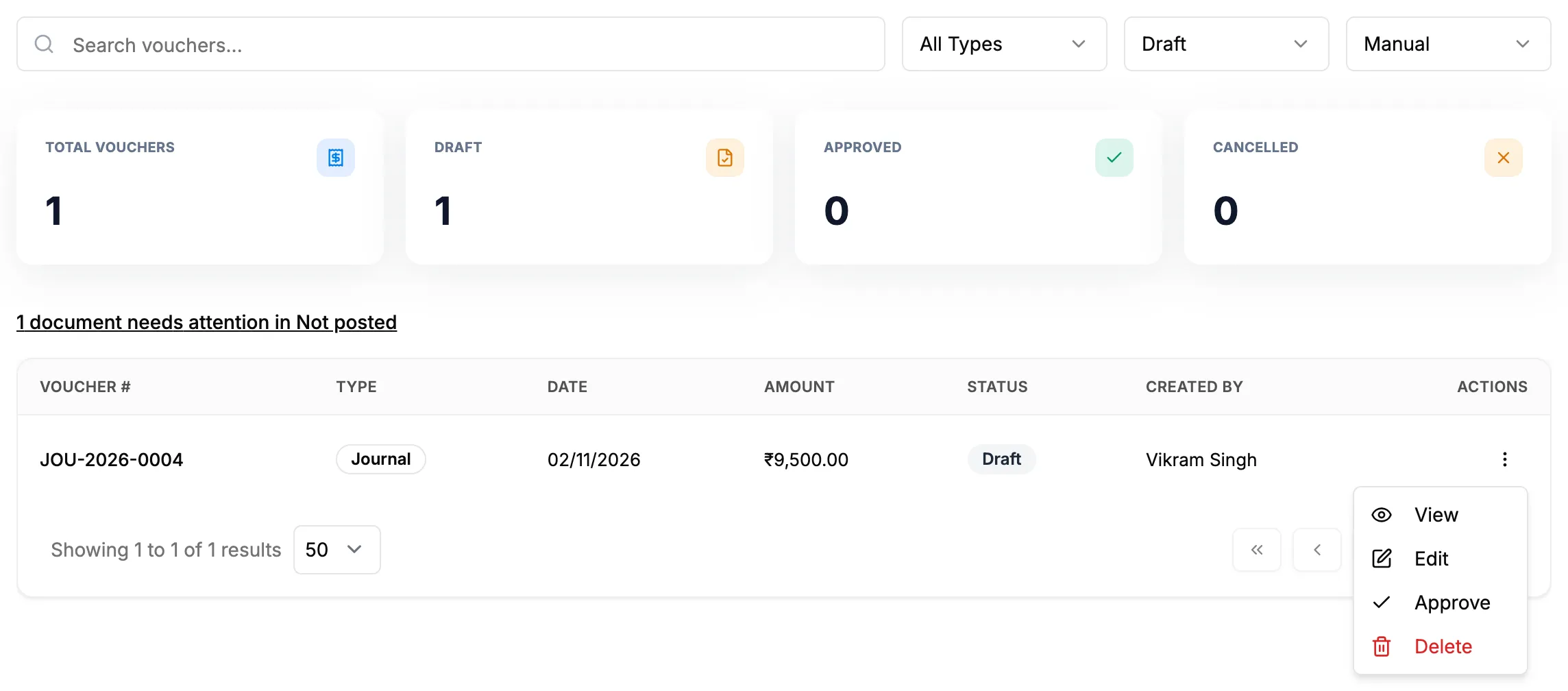
Step 4. The Actions menu of a draft voucher with Approve.
There is no question to confirm. The voucher is approved at once.
Result
The message "Voucher approved successfully" shows. The row reads Approved. The voucher now counts in ledgers, account statements, the trial balance, profit and loss, balance sheet, the cash and bank books, outstanding and ageing, and reconciliation. It cannot be edited any more; to correct it, cancel it and enter a new one. See Cancel an approved voucher.
If something is different
- No Approve in the menu: you need Approve on Accounts vouchers, the voucher must be a draft, and it must not be an Auto voucher. See Edit, Approve or Cancel is missing on a voucher.
- "Voucher is not balanced. Debit: [amount], Credit: [amount]": edit the draft so the two match. See Edit or delete a draft voucher.
- "Can only approve draft vouchers. Current status: [status]": the voucher is already approved or cancelled.
- "[year] is locked. Vouchers dated in a locked financial year cannot be changed.": see A voucher or document is in a locked financial year.
- Vouchers from Tally: they arrive as drafts with Move into accounts. Approve each one the same way. See Move imported Tally data into your accounts.