
Before you start
- You need Inventory Management.
- The project's system type is Room splits. The sizing banner reads "Units are sized per space".
- Your items include room split units with the AC Systems category and an equipment type. See "No equipment found" or "Type not set".
Steps
-
Open AC Unit Recommendations for the project. See Open AC Unit Recommendations for a project.
-
Find the Units per space table on the Choose AC Systems card: "Choose a unit for each space. Recommended is the smallest size that covers the load."
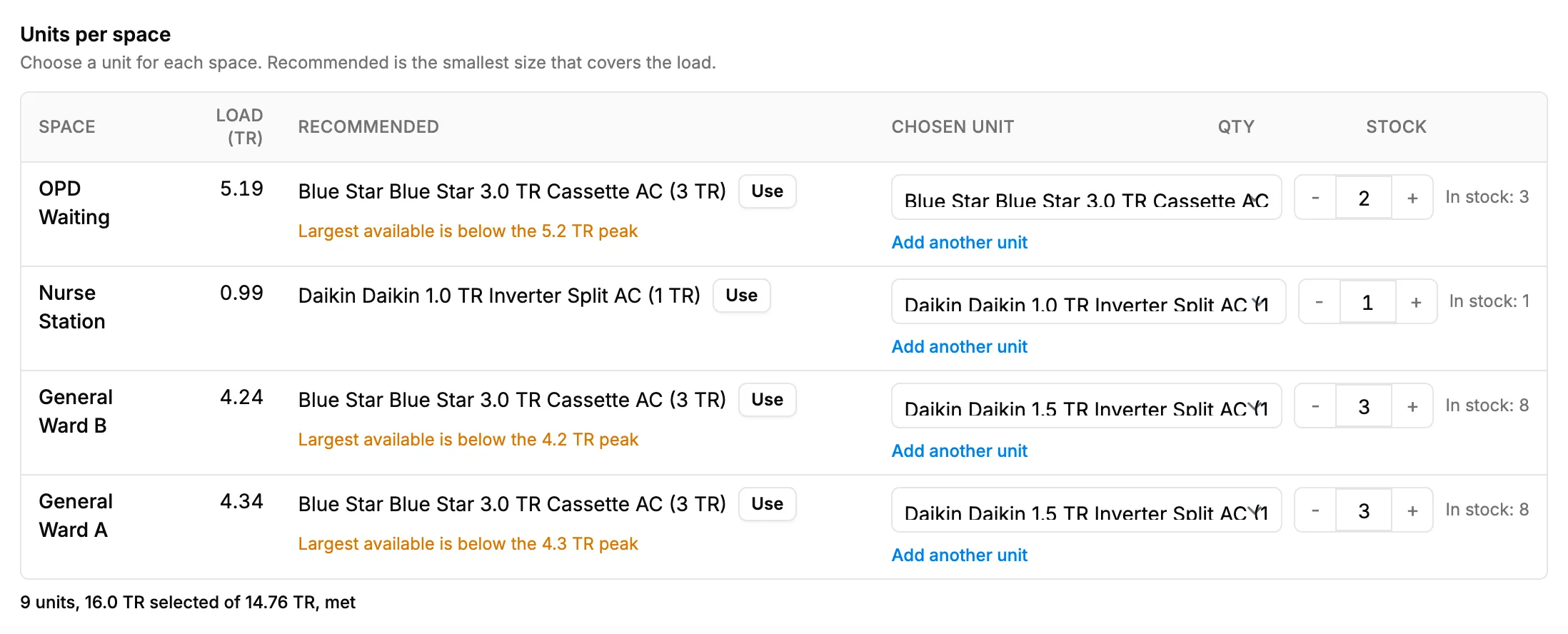
Step 2. The Units per space table with Recommended, Chosen unit and Qty. -
On each space's row, select Use to take the Recommended unit, or pick one in Chosen unit.
-
Set Qty.
-
If a row shows "from heat load" with "Proposed on heat load: [text]", select Confirm to keep the unit proposed on the heat load results.
-
To give a space a second unit, select Add another unit.
-
Read each row's verdict and the totals line.
-
Save the selection. See Save your equipment selection.
Result
Every space has its chosen unit and quantity, with a verdict per row. Nothing is saved until Save selection.
If something is different
- "No [types] in your items. Set equipment types on the Items page.": see "No equipment found" or "Type not set".
- "Unit not in the current list": a unit saved earlier is no longer offered, for example its equipment type changed.
- "Not assigned to a room": units saved without a space are listed below the table, with "was [space]" when they had one. Choose a space in Assign, or select Remove.
- A row's verdict is short or oversized: see The verdict says short or oversized.
- "To be ordered": the unit has no stock. You can still choose it.
- A space shows its load in kW: it needs heating only.
- "Units are chosen per space in the table below.": room split projects have no Get Recommendations.