
Before you start
- You need Inventory Management.
- The project's system type is Ducted DX ("One unit sized on the block load"), or no system type is set ("Equipment sizing").
- Your items include ducted units with the AC Systems category and an equipment type.
Steps
-
Open AC Unit Recommendations for the project. See Open AC Unit Recommendations for a project.
-
On the Choose AC Systems card, read the load. On a Ducted DX project, the card reads "Sizing for block load: [number] TR, [number] CFM" and shows no load chips. Otherwise it shows the load chips: "Block load [number] TR" and one chip per space.
-
In the card grid, set Qty on the units you want. The description counts what you chose: "[number] unit(s) · [number] TR selected".
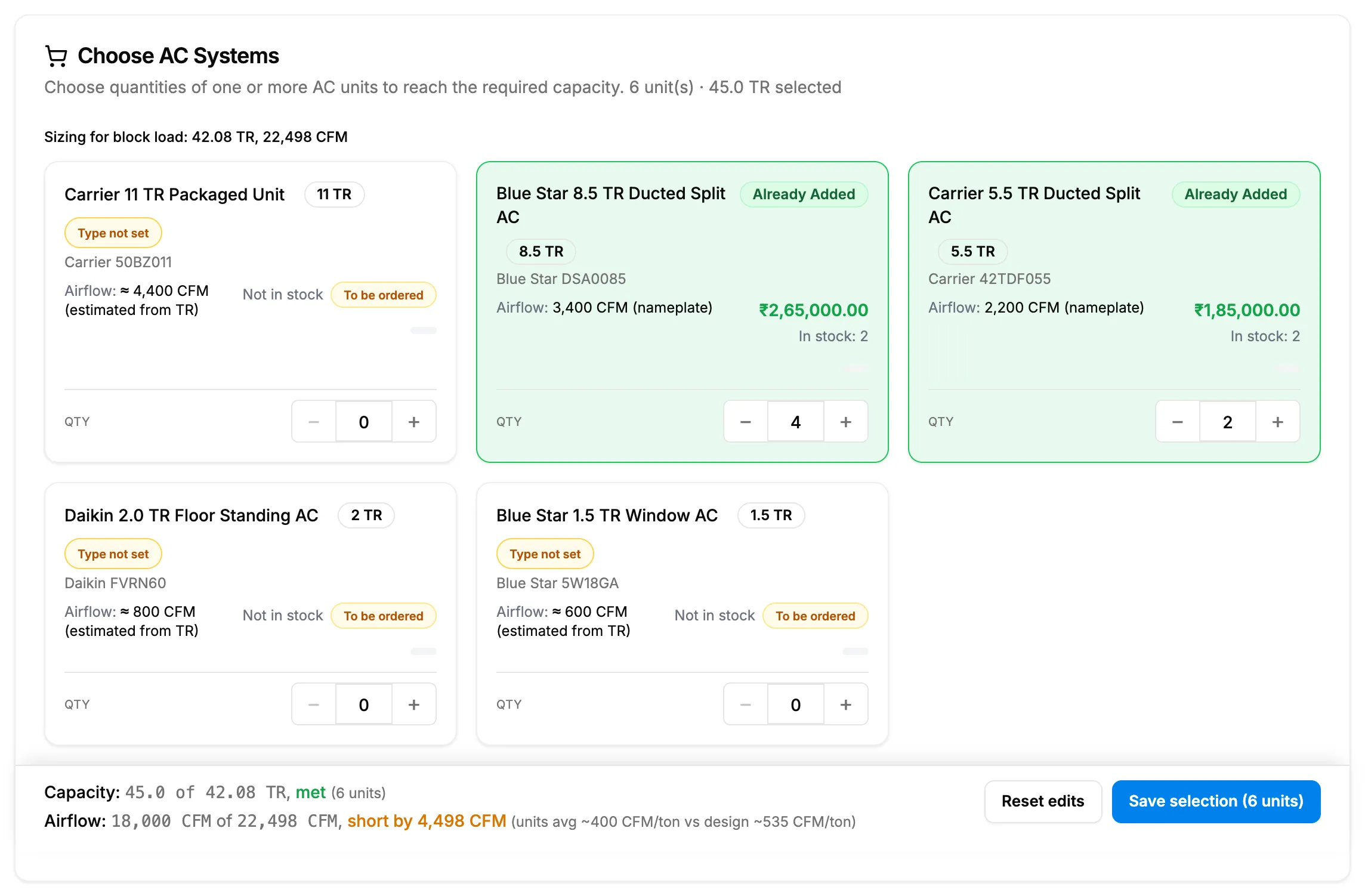
Step 3. The card grid with Qty steppers and the TR selected count. -
Read the capacity and airflow verdicts in the footer.
-
Save the selection. See Save your equipment selection.
Result
The chosen units and quantities show in the footer with their verdicts. Nothing is saved until Save selection.
To have the page rank units against the load first, see Get recommendations for a block-load project.
If something is different
- An amber note: "Equipment suggestions on this page are matched by TR and suit DX systems. For chilled water and hot water systems, select plant equipment manually for now.": the project has no known system type. Set it with Change system type in project setup. See Confirm the project's system.
- "No equipment found. Set equipment types on the Items page." or "Type not set" on a card: see "No equipment found" or "Type not set".
- "The equipment list could not be loaded.": reload the page.
- "To be ordered": the unit has no stock. You can still choose it.
- A status such as "inactive" on a card: the item is not active in your items.
- Qty set to 0 removes the unit from your choice.