
Before you start
- You need Project Management and View on Projects.
- The project has a location, so a weather station can be matched. See Add a project.
Steps
-
Open the project. It opens on the Overview tab.
-
Find the Design Conditions card. "Loading design conditions…" shows while it loads.
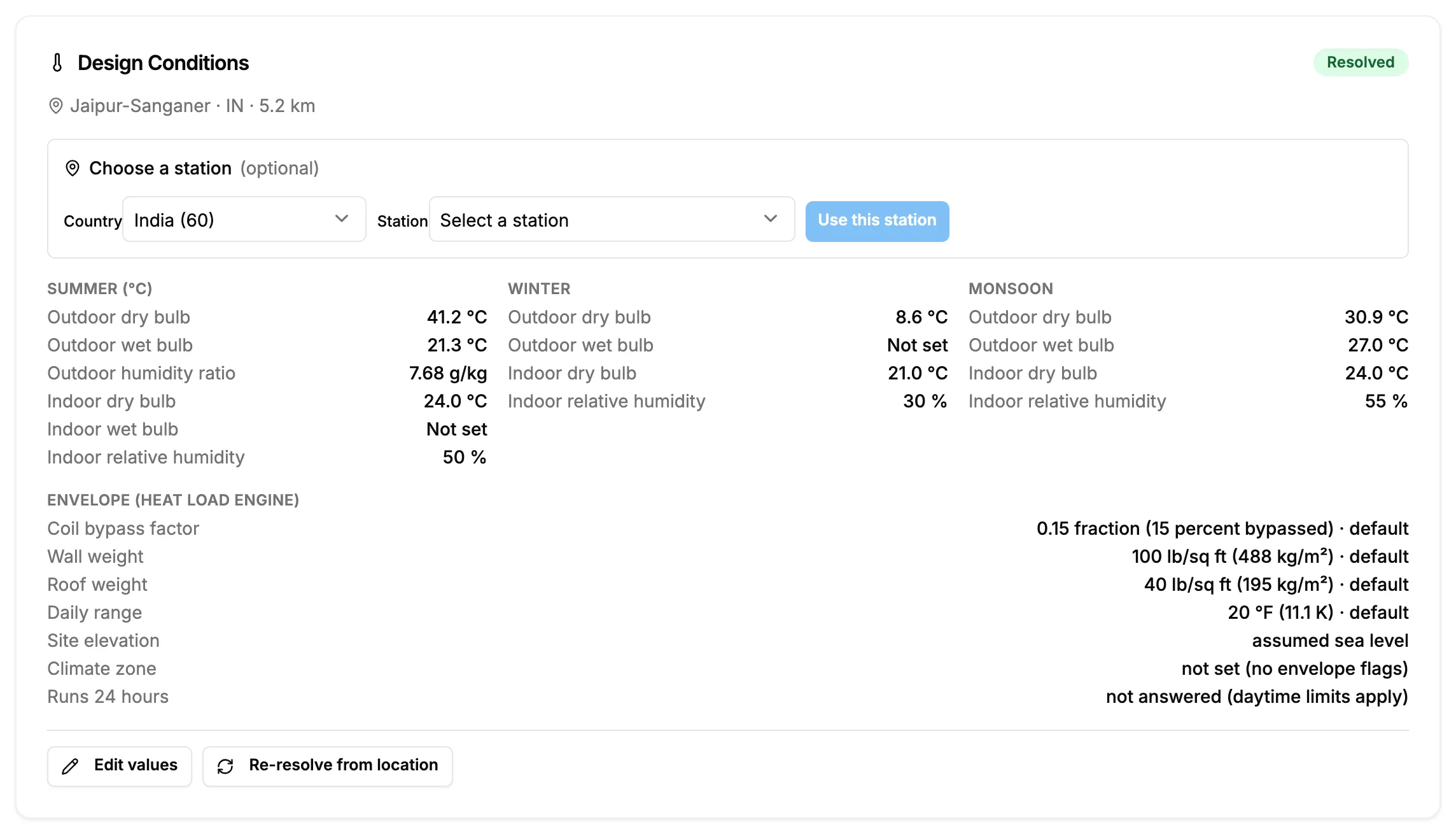
Step 2. The Design Conditions card with its badge, station line and the Summer section. -
Read the badge and the station line: they say where the values come from. Under the station line, the Choose a station (optional) panel has Country, Station and Use this station. To pick another station, see Change a project's design conditions.
-
Read the Summer, Winter and Monsoon sections, and Envelope (heat load engine).
-
Below it, the Load Summary card shows the project's load, or "Not calculated" before any space is calculated. Under Cooling it names the system type and the load method, for example "E-20 Cooling Load Method", with the load in kW and TR and Open calculator. Under Heating it reads "No heating side configured." when the project has no heating side. The link View load roll-up (sum vs coincident) is at the bottom of the card.
Result
You know the conditions every new space in the project will start with. What each row is: Design conditions: every field. What the badge means: How a project's design conditions are chosen.
Next: Calculate the heat load for a project.
If something is different
- "Not set": that value is blank. See Change a project's design conditions.
- The badge reads "No station nearby" or "Fallback: no location": see Design conditions show "No station nearby" or "Fallback: no location".
- "Design conditions could not be loaded for this project.": select Try again.
- No Load Summary card: older projects do not show it.
- Values are in °C or °F: they follow the project's unit system.