
Before you start
- You need Operation Management.
- To copy, you need Add on Duct and load calculations. To delete, you need Delete on it.
- Open the project's HVAC Spaces screen. See Calculate the heat load for a project.
Steps
Copy a space
- On the space's row, select Copy space. The "Copy Space" box suggests a name such as "[name] (Copy [number])".
- Keep or change the Space Name: 3 to 55 characters.
- Select Copy Space.
Delete spaces
-
To delete one space, select Delete space on its row. The box asks "Are you sure?": "You will not be able to recover this space! This action cannot be undone." Select Yes, delete it!.
-
To delete several, tick their rows. A bar shows "[number] selected". Select Delete [number], then Yes, delete [number].
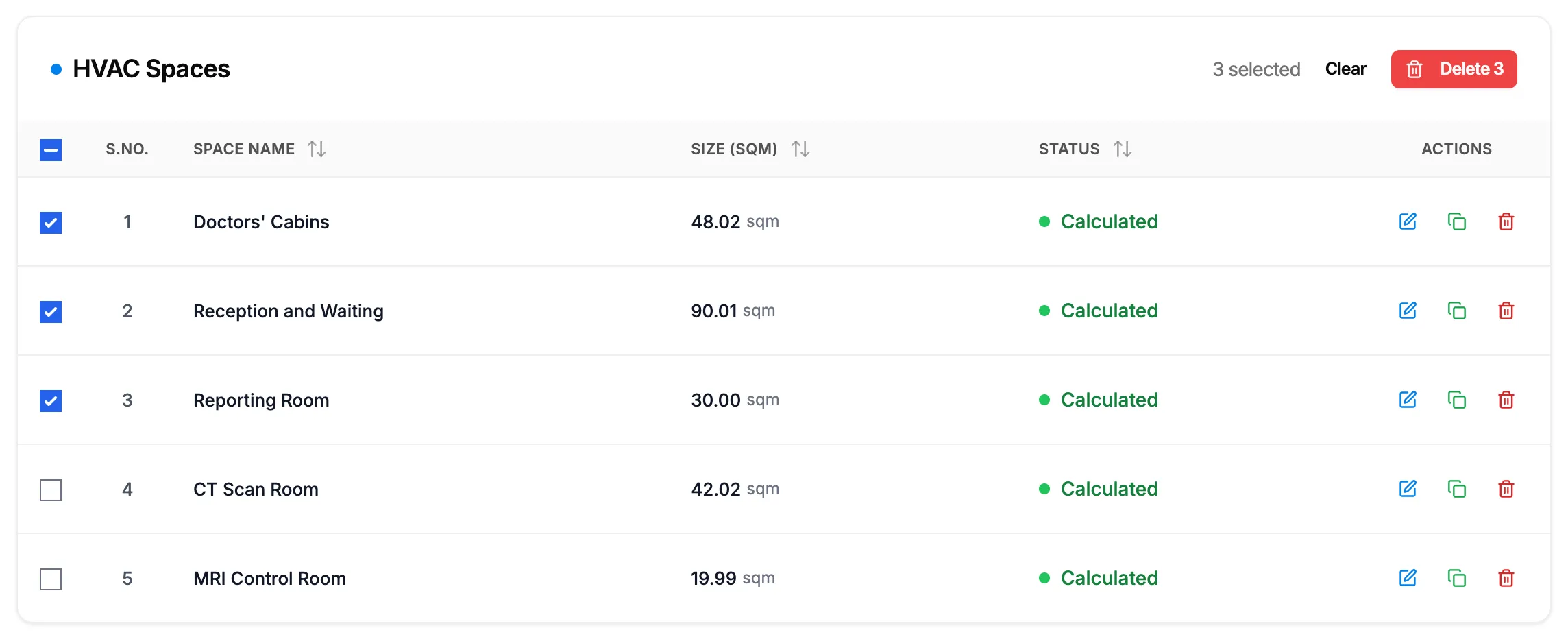
Step 2. Three spaces ticked with the Delete button in the selection bar.
Result
Copy a space: the message "Space copied successfully as "[name]"" shows and the copy is in the list. Open it with Edit space to change it.
Delete spaces: the message "Space deleted successfully" or "Deleted [number] space(s)" shows. The project totals no longer include them.
If something is different
- "Space name must be at least 3 characters" or "Space name must not exceed 55 characters": change the name.
- "Deleted [number] of [number]. [number] failed and remain selected.": some spaces were not deleted. Select Delete [number] again for the ones still ticked.
- The copy is refused: you do not have Add on Duct and load calculations.
- No Delete space icon: you do not have Delete on Duct and load calculations.
- To stop selecting: select Clear.