
Before you start
- One space's PDF and Excel, and the downloads on HVAC Spaces, need Operation Management and View on Duct and load calculations.
- The downloads on the Heat Load stage need only that you can see the stage. They show once at least one space is calculated.
- Only calculated spaces are included. Drafts never are.
Steps
Download one space's results
- Open the space's results. See Read a space's heat load results.
- Select PDF or Excel.
Preview the summary
-
Open the project's Heat Load Calculation stage, or the HVAC Spaces screen.
-
Select Preview Summary. "Loading preview..." shows, then the HEAT LOAD SUMMARY with UNIT SELECTION and the TOTAL row.
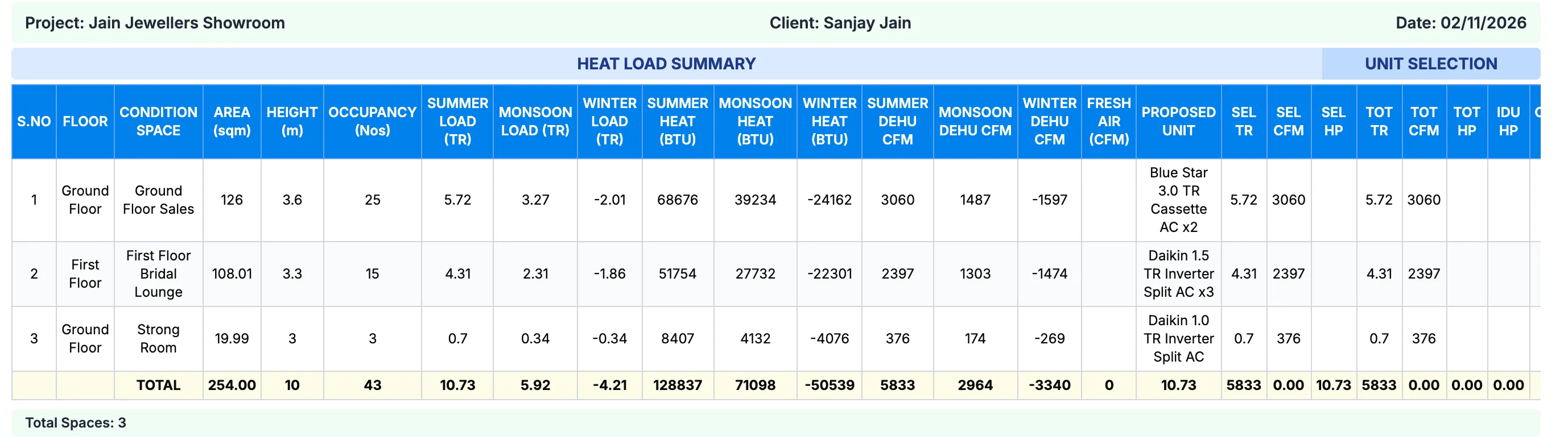
Step 2. The HEAT LOAD SUMMARY preview with UNIT SELECTION and the TOTAL row.
Download the summary or full results
- Open the project's Heat Load Calculation stage. See Open a stage and its tool.
- Select Download Summary Excel for the summary, or Download Excel for the full results. HVAC Spaces also has Download Summary Excel.
Result
Download one space's results: the message "PDF export initiated" or "Excel file downloaded successfully" shows and the file downloads.
Preview the summary: the summary of every calculated space opens.
Download the summary or full results: the message "Download Started - Heat Load Summary Excel is downloading." or "Download Started - HVAC results Excel is downloading." shows and the file downloads.
If something is different
- "Could not export HVAC results." or "Could not export Heat Load Summary.": see The heat load Excel or summary download failed.
- No download buttons on the stage: no space is calculated yet.
- The file name has the next or previous day's date: file names use the UTC date, not your company's date.