
Before you start
- You need Operation Management and View on Duct and load calculations.
- The space is calculated. See Calculate the heat load for a project.
Steps
-
Calculate the space, or open a calculated space with Edit space on HVAC Spaces.
-
Read the top of the results: Peak cooling load · Summer in TR, with kW as well on SI. Under it: Grand total heat (in kW on SI), Airflow required (in L/s on SI), ESHF, and Winter or Winter · Heating Load.
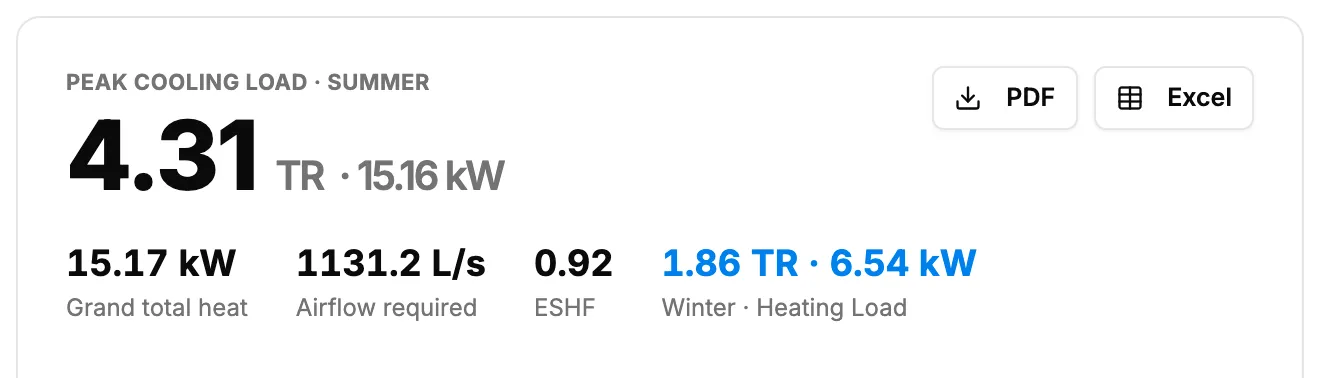
Step 2. The top of the results: peak cooling load in TR, grand total heat, airflow, ESHF and winter. -
To see another season, select Summer, Monsoon or Winter.
-
Read What's driving the load.
-
To see every figure, open Full engineering breakdown.
Result
The breakdown lists Room sensible heat (RSH), Effective room sensible heat (ERSH), Effective room total heat (ERTH), Grand total heat, Dehumidification airflow, Effective sensible heat factor (ESHF), Indicated ADP (from ESHF), Selected ADP (used for airflow) and TR (Tons of Refrigeration). "Machine-only intermediates (CFM per L, dehumidification SL, etc.) stay in the Excel export."
On HVAC Spaces, expand a space's row to see a Calculation Results table with Parameter, Summer, Monsoon and Winter.
Next: Choose the proposed unit for a space.
If something is different
- Winter: on E-20, winter is an estimate. The results say "Winter is a Heating Load. Estimated from the cooling engine, not a code-compliant heating-load calculation."
- The Heat Load stage says "Winter Cooling Load": the stage summary labels the winter figure that way. It is the same estimate.
- TR and kW: results lead with TR. On SI, kW shows too.
- To change an input: select Edit inputs. See Change a space and calculate it again.
- To save the results as a file: see Preview and download heat load results.