
Before you start
- You need Operation Management, and Add and Edit on Duct and load calculations.
- Your company's plan is active.
- The project's system has ducted units. Otherwise see "Ductwork does not apply to this project".
- To take the airflow from the heat load, calculate the project's spaces first. See Calculate the heat load for a project.
Steps
-
Open the project, select the Project Stages tab, and open the Ductwork Planning stage. See Open a stage and its tool.
-
Under "Size the ductwork for this project", select Open Duct Sizing. Duct Sizing opens with "[project name] / Duct Sizing" in the header bar, in the project's unit system.
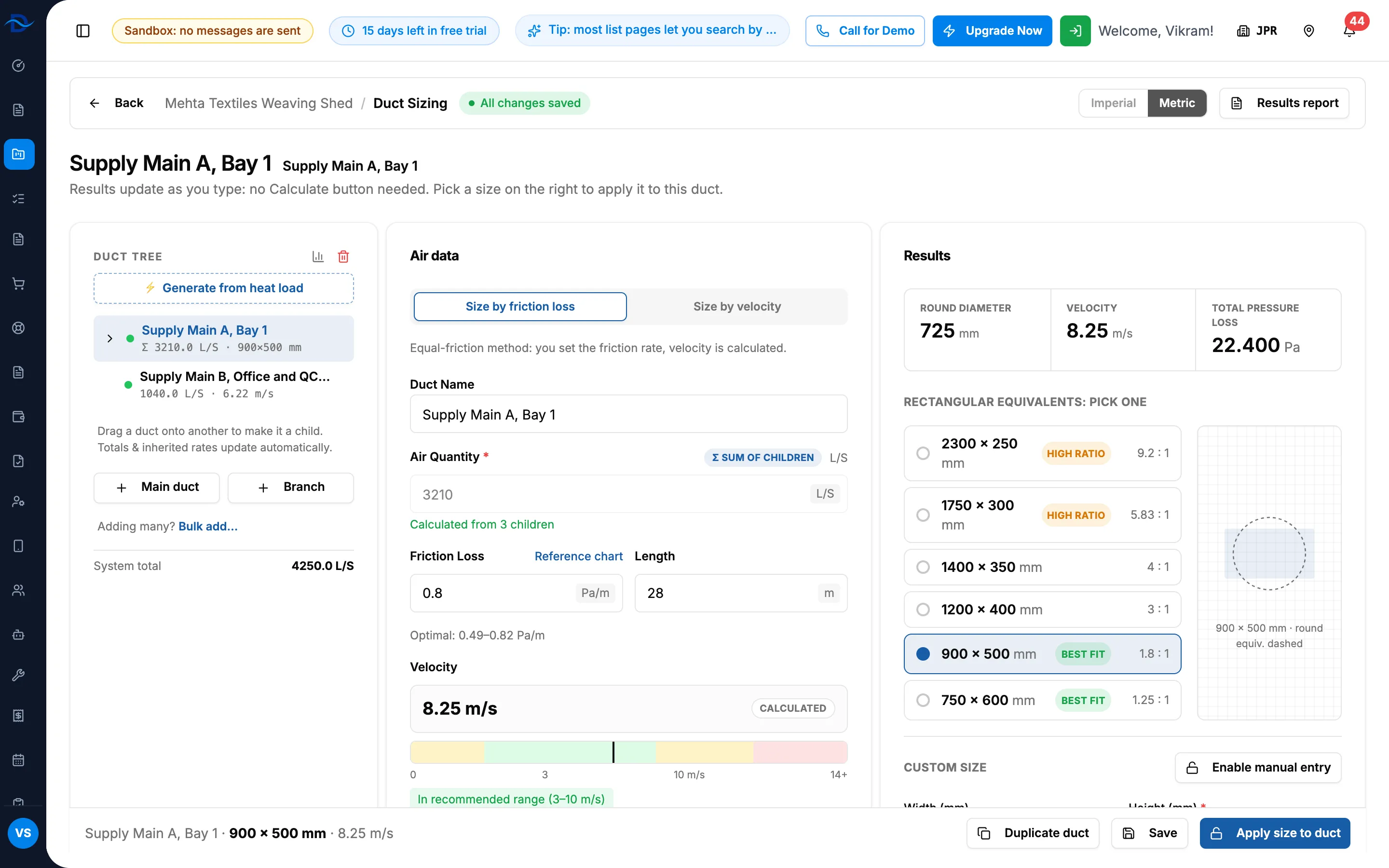
Step 2. Duct Sizing with the Duct tree, Air data and Results cards. -
Build the tree: select ⚡ Generate from heat load to build it from the heat load zones, or add ducts yourself. See Generate the duct tree from heat load or Add main ducts and branches.
-
Select a duct in the tree.
-
In Air data, check the air quantity and choose Size by friction loss or Size by velocity. Fill in the friction loss or the target velocity, and the length. See Size a duct by friction loss or by velocity.
-
In Results, pick one of the rectangular equivalents, then select Apply size to duct. See Pick a rectangular size and lock it.
-
Repeat steps 4 to 6 for every duct.
-
Select Save.
Result
The message "Calculation saved successfully!" shows and the header pill reads All changes saved. Every sized duct shows its locked size. On the Ductwork Planning stage, Download Excel downloads the results. See Export duct sizing results.
If something is different
- Billing opens, or a plan box opens on Save: see Save says the plan is not active, or Duct Sizing sends me to Billing.
- "Ductwork does not apply to this project": see "Ductwork does not apply to this project".
- Access Denied, or no Open Duct Sizing: see Duct Sizing is missing or opens Access Denied.
- The unit toggle is greyed out: the project's unit system is used. See The unit toggle is greyed out.
- On some projects the button reads "Duct Sizing" instead of Open Duct Sizing: it opens the same screen.
- A duct shows "Heat load updated": see A duct shows the "Heat load updated" banner.
- "This calculation's saved units look inconsistent.": select These are Imperial or These are Metric to say which units the saved values are in, or Dismiss.
- Leaving with Back: the sizing saves first. See Changes may not be saved when I leave.