
Before you start
- The Results report needs Operation Management and View on Duct and load calculations, and at least one duct.
- The stage's Download Excel needs only that you can see the Ductwork Planning stage.
Steps
Open the Results report and export CSV
-
In Duct Sizing, select Results report. The box "Calculation Results [project]" opens.
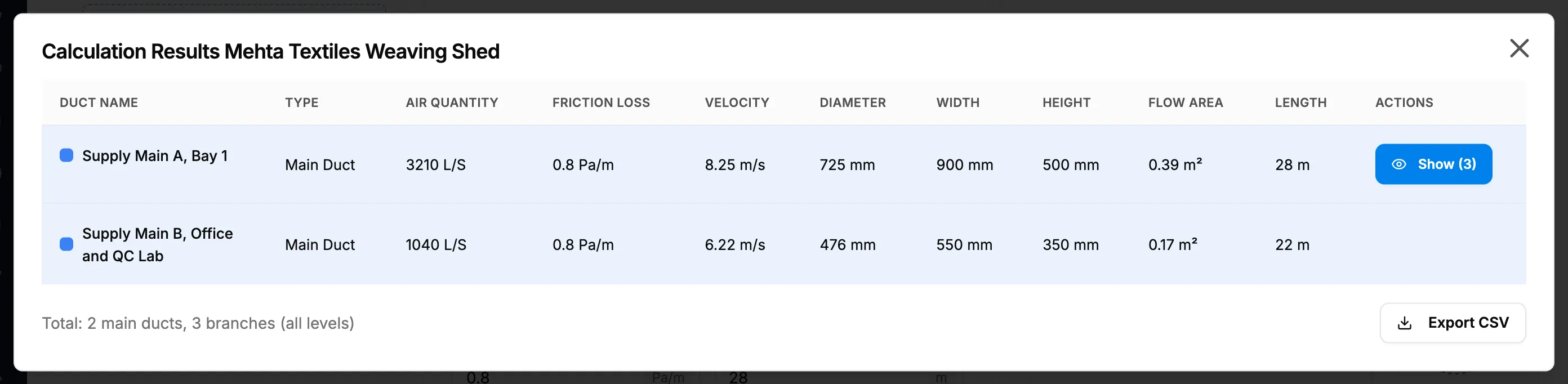
Step 1. The Calculation Results box with the duct table and Export CSV. -
Read the table: Duct Name, Type, Air Quantity, Friction Loss, Velocity, Diameter, Width, Height, Flow Area, Length. The table first lists the main ducts only. To see a main duct's branches, select Show ([number]) on its row. The footer reads "Total: [number] main duct(s), [number] branch(es) (all levels)".
-
Select Export CSV.
Download Excel from the Ductwork Planning stage
- Open the project's Ductwork Planning stage. See Open a stage and its tool.
- Under Duct summary, select Download Excel.
Result
Open the Results report and export CSV: the message "Results exported successfully!" shows and the CSV file downloads.
Download Excel from the Ductwork Planning stage: the Excel file of the project's duct results downloads. The Duct summary shows the number of ducts ("DUCTS [number]").
If something is different
- Results report is greyed out: the tree has no ducts yet.
- "No calculation results available. Add ducts and perform calculations first.": size at least one duct.
- The file name has the next or previous day's date: file names use the UTC date, not your company's date.