
Before you start
- You need Operation Management and View on Service contracts. By default Owner, Admin and Manager have them. Maintenance Management or AMC Service Management alone is not enough.
Steps
-
In the sidebar, select Service & Maintenance › Billing. "Billing" opens: "Contract invoices and per-visit parts billing across all contract types".
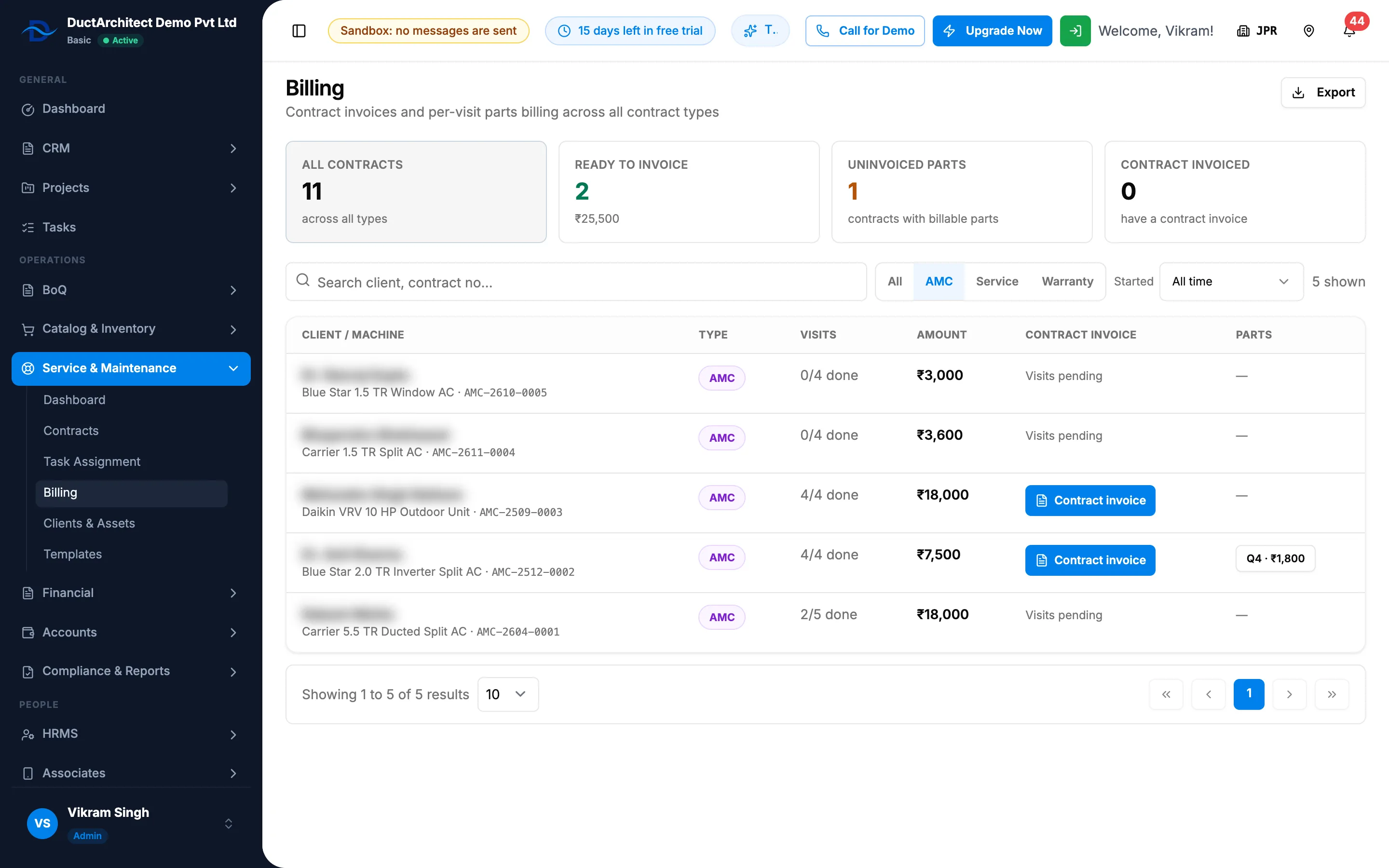
Step 1. Billing with the four cards and the contracts list. -
Select a card to filter the list:
- All contracts ("across all types");
- Ready to invoice: every visit done, no contract invoice yet, not a warranty. It shows the value waiting, or "Nothing waiting";
- Uninvoiced parts: "contracts with billable parts";
- Contract invoiced: "have a contract invoice".
-
To narrow it, type in Search client, contract no…, choose a type and a Started period. The filter row ends with "[number] shown". Under the list are "Showing [first] to [last] of [total] results", a page-size select (it starts on 10) and the page buttons: first, previous, page number, next and last.
-
Read each row: Client / machine, Type, Visits ("[done]/[total] done"), Amount, Contract invoice and Parts. Under the client, unscheduled worker entries show as "[number] unscheduled entries · [value] (read-only)".
-
The Contract invoice column shows the invoice number with a tick, the Contract invoice button when the contract is ready, "Free" for a warranty, or "Visits pending".
Bill a visit's parts
- In Parts, select a visit's button ("[label] · [parts total]"). The box "[number] · [label] Parts" lists each Part, Qty, Unit Price and Total. It is read only.
- To bill them, follow the box's note: "To create an invoice for these parts, go to Financial → Invoices → New Invoice." See Create an invoice, or bill service jobs from Job Costing: Invoice service jobs from Job Costing.
Export the list
- Select Export. The file is named Service-Billing.
Result
You see which contracts are ready to invoice and which visits have parts to bill. Next: Create a contract invoice from Billing.
If something is different
- Billing opens Access Denied: you need Operation Management. See Billing or New contract opens Access Denied.
- No Contract invoice button: the contract is not ready, or you lack Add on Invoices. See Contract invoice is missing or refused on Billing.
- The unscheduled entries show a date as 2026-11-01: Billing prints that date as stored. See A visit shows the wrong day or overdue text, or amounts show ₹ in another currency.
- "Nothing to bill here": "Try a different filter." Select All contracts.
- "Failed to load billing": reload the page.