
Before you start
- You need Operation Management, Maintenance Management, AMC Service Management or Inventory Management to save templates. By default Owner, Admin and Manager have one. Adding a template needs an active plan.
- To give a catalog item a template, see Give a serviceable item a maintenance template. That box on the item form makes the same kind of template.
Steps
Add a template
-
In the sidebar, select Service & Maintenance › Templates. "Service Templates" opens: "Reusable free, paid, and AMC service plans, used by the New Contract form and scheduling."
-
Select New template. The box "New template" opens with Basic Info, Schedule, Execution and Tasks.
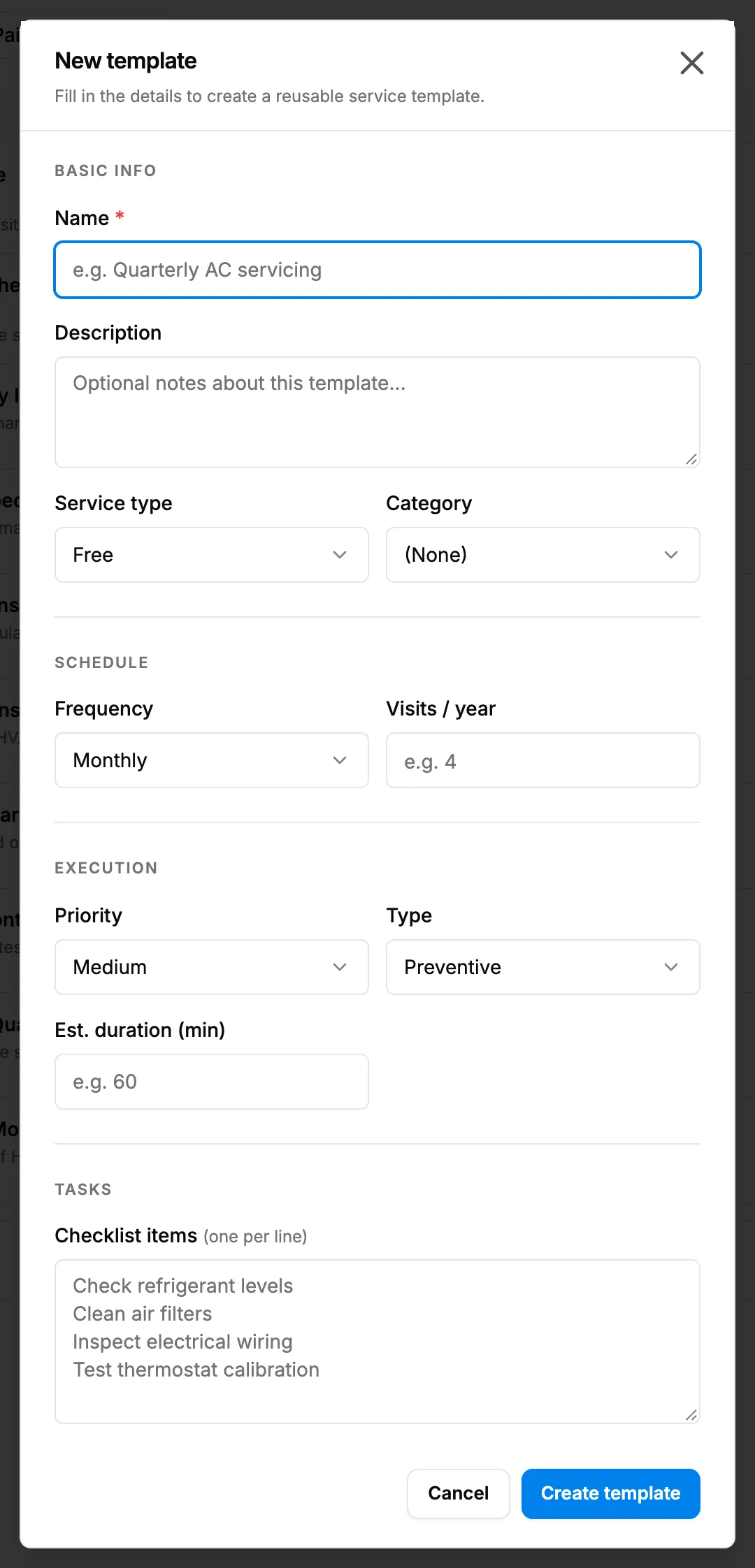
Step 2. The New template box with Basic Info, Schedule, Execution and Tasks. -
Fill in the template:
Field Required What to enter Name Yes Up to 50 letters. Spaces and - ( ) . , & ' are allowed; digits are not. Description No Notes about the template. Service type No Free (the default), Paid or AMC. Category No (None), AC Systems, Controls, Equipment, Ductwork, Refrigerants, Fittings, Hardware, Insulation, Tools or Returnable. Frequency No Daily, Weekly, Monthly (the default), Quarterly, Yearly or Custom. Every N days Yes Custom frequency only: the number of days, a whole number. Visits / year No 1 to 365. Not for a custom frequency. Priority No Low, Medium (the default), High or Critical. Type No Preventive (the default), Corrective or Inspection. Est. duration (min) No 0 or more. Service price (₹) No Not for a Free template. Checklist items (one per line) No One task per line, for example Clean air filters. -
Select Create template.
Edit a template
- On the template's row, select the pencil icon. The box "Edit template" opens: "Update the details below and save."
- Change the fields, then select Save changes.
Delete a template
- On the template's row, select the bin icon. The box "Delete template?" says: "This can't be undone. Contracts already created from this template are unaffected."
- Select Delete.
Find and export templates
- Choose All, Free, Paid or AMC, or type in Search templates…. The list shows 10 to a page.
- Read each row: Template, Type, Cadence ("Every [number]d" or the frequency, and "[number] visits/yr"), Price, Tasks (the checklist count) and Actions.
- To export, select Export. The file is named Service-Templates.
Result
"Template created", "Template updated" or "Template deleted" shows. A template's visits per year fill Visits per year when it is picked on a service contract. See Add a service contract.
If something is different
- "Read-only" in place of the icons: it is a master template, marked "Master". You cannot change or delete it.
- "Cannot delete template. It is being used by [number] inventory item(s)": pick another template on those items first. See Give a serviceable item a maintenance template.
- Digits do not type in Name, or another refusal: see A service template cannot be saved or deleted.
- The Category list has categories that cannot take a template on an item: only AC Systems, Controls, Equipment and Ductwork items have the template field. See Equipment type, capacity or maintenance template is missing on the item.
- No Export, or "You cannot export lists.": see Restrict what a role can see and export.