
Before you start
- You need Operation Management, Maintenance Management or AMC Service Management, and View on Service contracts. By default Owner, Admin and Manager have them.
Steps
Search and filter
-
In the sidebar, select Service & Maintenance › Contracts. "Contracts" opens: "[number] contracts · AMC, service and warranty in one register". The newest contracts come first, 10 to a page. The page buttons are under the table.
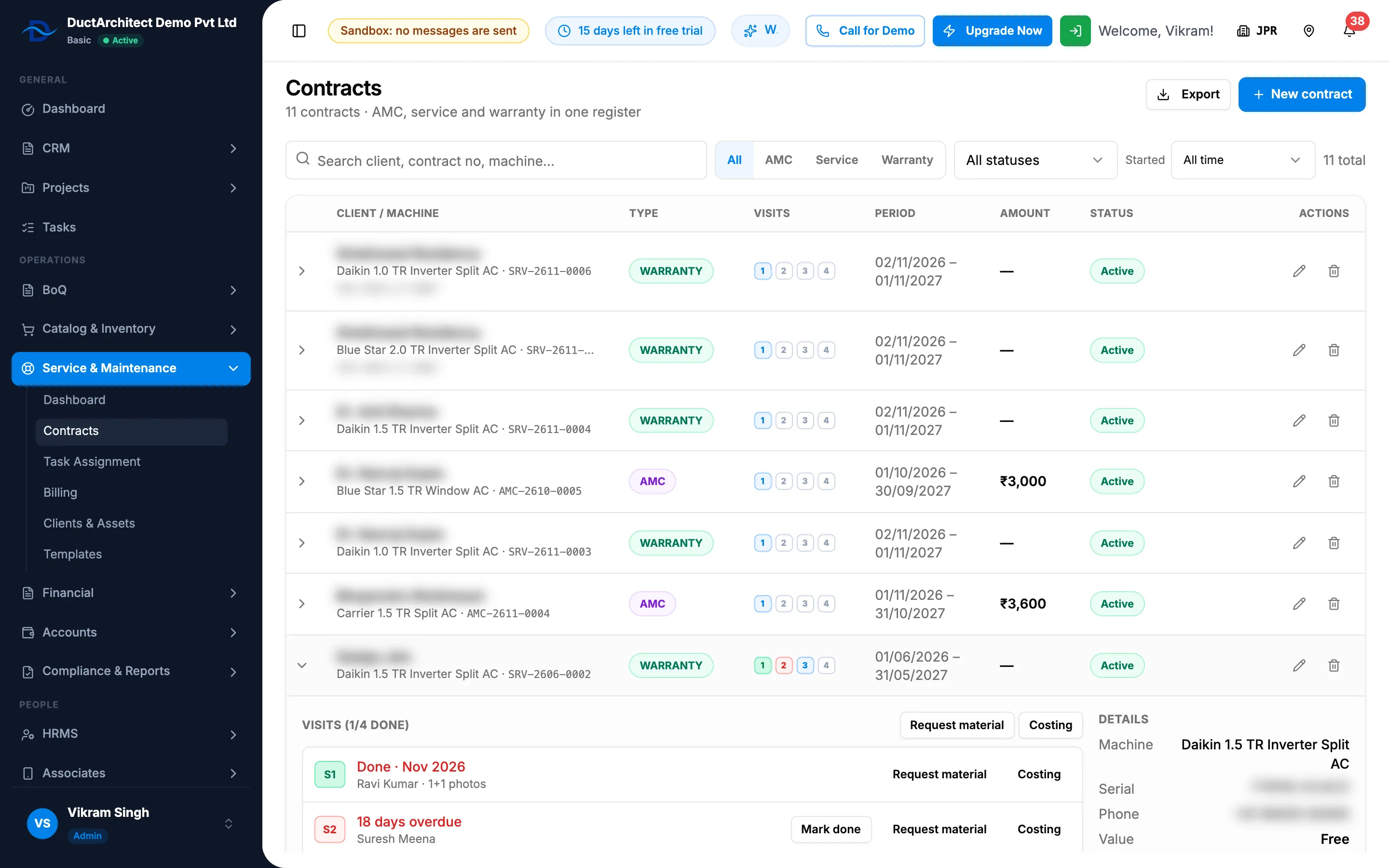
Step 1. The Contracts register with the search box, the type and status filters and the Started filter. -
To find a contract, type in Search client, contract no, machine….
-
To narrow the list, choose a type (All, AMC, Service, Warranty), a status (All statuses, Active, Ending ≤ 45 days, Expired) and a Started period. Started matches the contract's start date. Clear Filters removes them all. At the right of the filters, "[number] total" counts the contracts that match.
-
Read each row: Client / machine (the client, the machine and contract number, and the machine's invoice number when known), Type, Visits (one chip per visit), Period, Amount and Status. See Service screens: type badges, visit labels and due text.
Open a contract's visits
- Select the chevron at the start of the row. The row opens with "Visits ([done]/[total] done)", and ", [number] before import" for a contract imported with past visits.
- Read each visit: its chip, when it is due or "Done · [month year]", the technician or "Unassigned", and for a done visit the number of before and after photos.
- Read the Details: Machine, Serial, Phone and Value ("Free" for a warranty or 0).
- From here:
- Mark done on a visit completes it. See Complete a visit.
- Request material on the contract or on a visit raises a material request charged to it. See Raise a material request for a service contract or visit.
- Costing on the contract or on a visit opens the job costing for it. See Read job costing for service contracts and one-off jobs.
- Renew, the pencil and the bin are on the row. See Renew a contract, Edit a contract and Delete a contract.
Export the list
- Select Export, then Export Excel or Export PDF. The file, named Service-Contracts, has the contracts that match your filters.
Result
You see the contracts you were looking for, with their visits. Deleted contracts are never listed.
If something is different
- Amount reads "Restricted": you cannot see selling prices. See New contract, Renew, edit or delete is missing, or amounts show Restricted.
- Only some contracts are listed: with Can see all records unticked, you see only contracts of your own projects or clients.
- Costing is refused or empty: it needs Financial Management and View on Job costing sheets. See Amounts show Restricted, or invoice and costing buttons are missing.
- No Request material: the Material Requests module is off, or you do not have Add on Material requests. On a visit it shows only for visits created in the new service module.
- A cancelled visit shows "[number] day(s) overdue": the open row shows a cancelled visit's due text. See A visit shows the wrong day or overdue text, or amounts show ₹ in another currency.
- No Export, or "You cannot export lists.": see Restrict what a role can see and export.
- "No contracts match": "Try clearing a filter, or create a new contract." Select Clear Filters.
- "Failed to load contracts": reload the page.