
Before you start
- You need Delete on Service contracts and Can see selling prices. By default Owner, Admin and Manager have them.
- With Can see all records unticked, you can delete only contracts of your own projects or clients.
Steps
-
In the sidebar, select Service & Maintenance › Contracts and find the contract.
-
On its row, select the bin icon. It has no label. The box "Delete contract?" opens with "[number] · [client]": "The contract and its pending visits will be removed from all lists. Completed visits and the records themselves are kept."
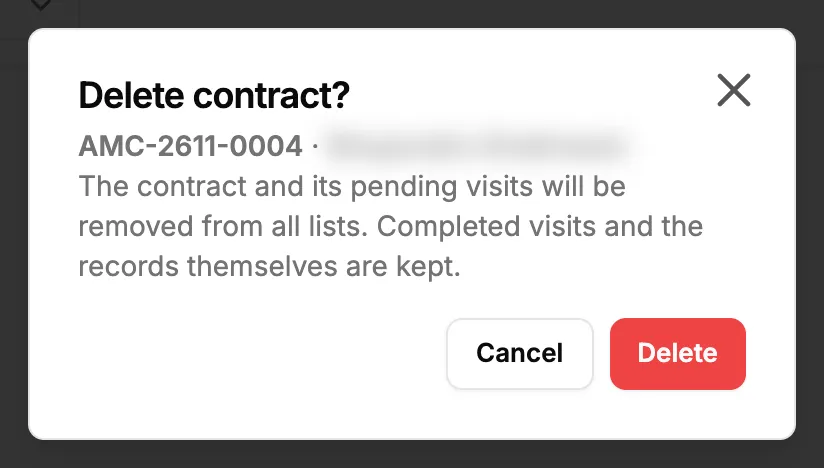
Step 2. The Delete contract box with the contract number and client. -
Select Delete.
Result
The message "Contract deleted" shows. The contract is gone from Contracts, the dashboard and Task Assignment, with its pending visits and their technicians. Its completed visits stay on the Completed tab of Task Assignment and on Billing.
If something is different
- No bin icon: you need Delete on Service contracts and Can see selling prices. See New contract, Renew, edit or delete is missing, or amounts show Restricted.
- "Delete failed": reload the page and try again.
- You want to stop the contract but keep it on the list: there is no cancel action for a contract. See I can't delete a visit or a machine, or bring back a deleted contract.