
Before you start
- You need Operation Management, Add on Service contracts and Can see selling prices. By default Owner, Admin and Manager have them.
- Every machine on the contract was installed by your company. A warranty contract is "for machines installed by you".
Steps
-
In the sidebar, select Service & Maintenance › Contracts, then New contract. Or, on the dashboard, select New contract › Free service / warranty.
-
Under Contract type, select Free service / warranty: "Post-installation free visit period: for machines installed by you."
-
Fill in Client & site. See Add an AMC contract.
-
Under Machines, pick or type each machine. Installed by is set to "Us (our installation)". Leave it so. See Add an AMC contract.
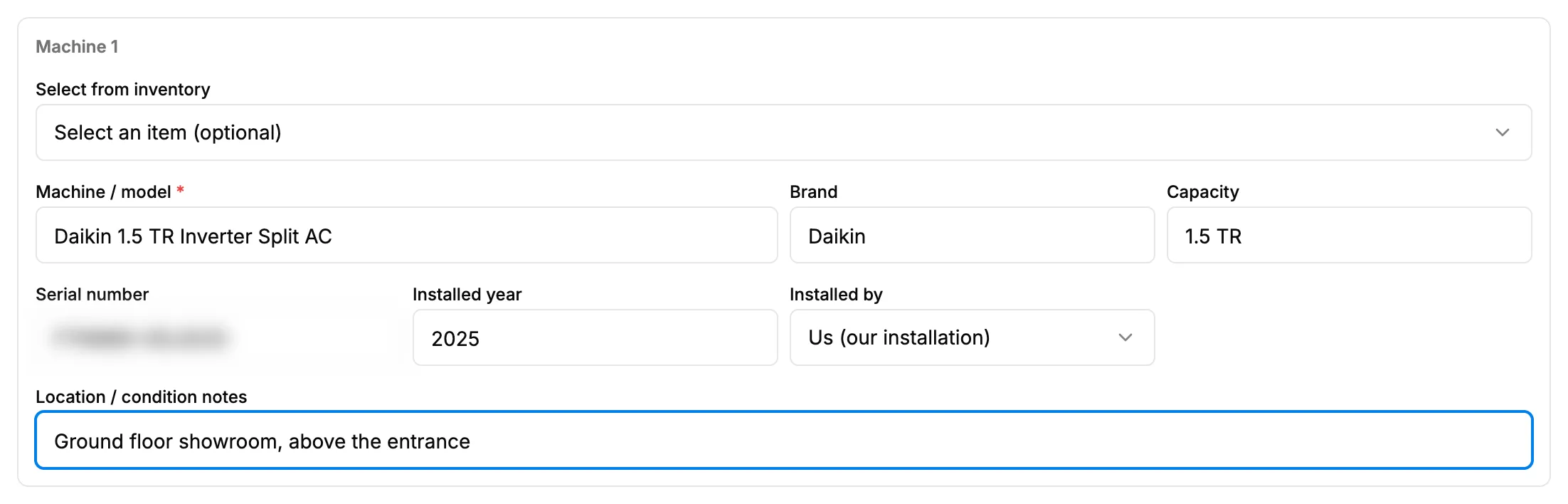
Step 4. A machine on a warranty contract with Installed by set to Us (our installation). -
Set Start date and End date: the free period.
-
Enter Visits per year (at least 1).
-
Select Create contract, or Create [number] contracts for several machines.
Result
The message "[number] contract(s) created" shows. Each contract is Active on the Contracts list with a number SRV-[YYMM]-[number], the type WARRANTY and the value "Free". Its visits are pending and unassigned on Task Assignment. A warranty contract is never billed: Billing shows "Free" for it.
Next: Assign technicians to visits.
If something is different
- "Warranty contracts are for your own installations." and Create contract greyed out: a machine's Installed by is not "Us". Set every machine to "Us", or switch the type to AMC or Service contract.
- "Warranty contracts are only for machines installed by us. Remove external machines or change the type.": the same refusal from the server. Remove the machine or change the type.
- No amount field: a warranty is always free.
- The form refuses for another reason: see A contract cannot be created.