
Before you start
- You need Add on Service contracts and Can see selling prices. By default Owner, Admin and Manager have them.
- The contract is expired, or every visit on it that is not cancelled is done. It has not been renewed before.
Steps
-
In the sidebar, select Service & Maintenance › Contracts. To list the contracts to renew, set the status filter to Expired or Ending ≤ 45 days. The dashboard alerts "Expired, not renewed" and "Ending within 45 days" open the same lists.
-
On the contract's row, select Renew. The box "Renew contract" opens: "[client] · [number]. Renewal creates a fresh visit schedule; completed visits stay in history."
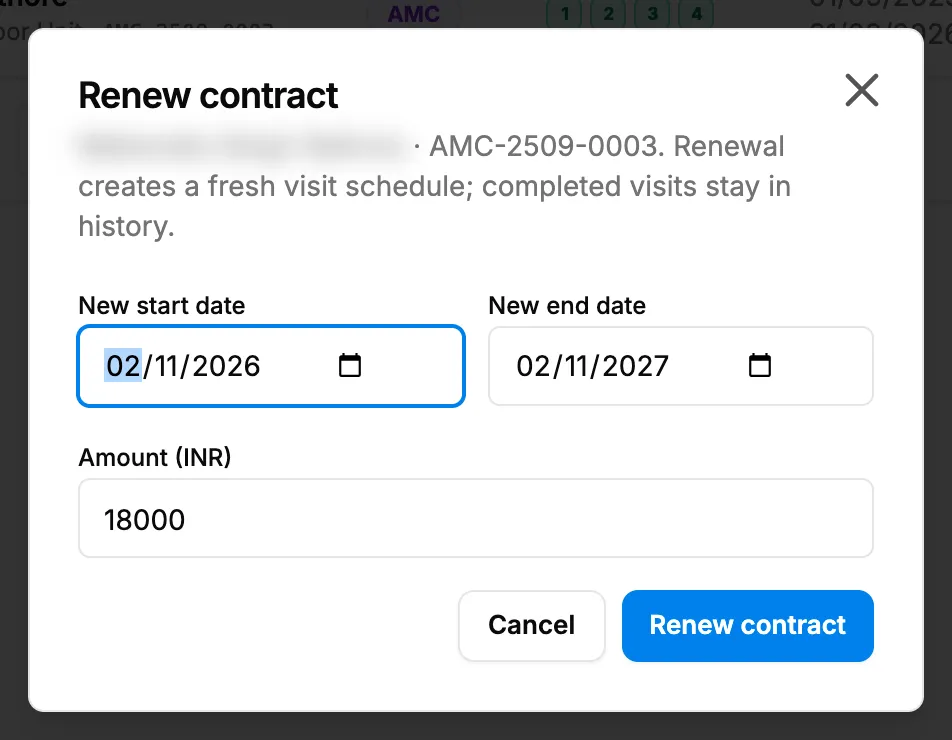
Step 2. The Renew contract box with the new start date, new end date and amount. -
Check New start date and New end date. They start at your company's today and 12 months later.
-
Check Amount ([currency]). It starts at the current amount. A warranty has no amount.
-
Select Renew contract.
Result
The message "Contract renewed: a fresh visit schedule was created" shows. A new contract is Active with a new number, the same type, client, machine, contacts and currency, and a fresh set of pending visits: 4 for an AMC, otherwise as many as the old contract had scheduled. If the old contract ran past the new start date, its end date is moved to the day before, so it reads Expired. Its completed visits stay in its history. This is the last step of the Service path.
If something is different
- No Renew on the row: the contract is still active with visits to do, it was renewed already, or you cannot see selling prices. See Renew is missing or refused.
- "This contract was already renewed as [number].": renew the newer contract instead.
- "Both dates are required" or "End date must be after start date": correct the dates.
- "Renew failed": try again. If it repeats, see Renew is missing or refused.